


When I started exploring the new Microsoft 365 MCP servers — exposed through the Agents 365 Tools
— one of the first questions was: what do I actually need to call them from an SPFx webpart? Do I need an Azure Functions proxy? A backend to handle the MCP protocol? It turns out the answer is simpler than expected: you can call them directly from the browser. Just fetch, a bearer token from SPFx’s AadTokenProvider, and the JSON-RPC protocol.
That discovery became the foundation of MCP365 Explorer — an open-source series of SPFx webparts, one per MCP server, each accompanied by a blog post. What started as a developer workbench during my work on GriMoire is now a standalone toolkit. This post introduces the series, walks through the setup, and goes hands-on with the first server: User Profile.
Preview notice: The Agents 365 Tools and MCP servers described in this post are part of the Microsoft Agent 365 tooling servers preview . These features are in preview, may change, and should not be used in production workloads. See Microsoft’s documentation for the latest status.
Table of Contents
- Table of Contents
- Why MCP Instead of Standard APIs?
- From Tooling to MCP365 Explorer
- What This Series Covers
- The MCP Protocol in 60 Seconds
- Prerequisites
- Hands-On: The User Profile Server
- Deploy It Yourself
- Resources
Why MCP Instead of Standard APIs?
This is the first question most developers ask. We already have Microsoft Graph. We already have REST endpoints. They work. Why add another protocol?
The answer is not about replacing Graph — it is about making tools LLM-discoverable.
With a standard API, you — the developer — know what endpoint to call, what parameters to send, and what the response looks like. You read the documentation, you write the code, you ship it. The knowledge lives in your head and in your implementation.
With MCP, the knowledge lives in the protocol itself. When you connect to an MCP server, it tells you:
- What tools are available (
tools/list) - What each tool does, in natural language descriptions
- What parameters it expects, as a JSON Schema
- What you should and shouldn’t pass — including explicit warnings
This means an LLM can connect to the same server, read the same schemas, and autonomously decide which tool to call based on what a user asks in plain language. A user says “show me my calendar for tomorrow,” and the LLM figures out it needs to call GetEvents on the Calendar server with the right date range.
But here’s an important nuance: the MCP server itself does not understand natural language. It expects structured calls — a tool name and JSON arguments matching the schema. The LLM is the bridge between “show me my calendar for tomorrow” and GetEvents({startDateTime: "2026-03-19T00:00:00", endDateTime: "2026-03-20T00:00:00"}). Without an LLM in the loop, you need to know the tool names and fill in the parameters yourself — which is exactly what MCP365 Explorer provides through its auto-generated forms.
What makes this work so well is that the natural-language descriptions in the schemas are written for LLMs to interpret. Look at what the server returns for GetMyDetails:
“Retrieve profile details for the currently signed-in user (“me, my”). Use this when you need the signed-in user’s identity or profile details (e.g., display name, email, job title), including for email/calendar scenarios and for questions like “who are you” or any identity question using “you” or “your”.”
And for the select parameter: “Always pass in comma-separated list of properties you need.”
These are not just descriptions for a human developer reading a spec. They are instructions the LLM reads, understands, and acts on. The phrase “questions like ‘who are you’” tells the LLM exactly when to pick this tool. The instruction “always pass in comma-separated list” tells it how to format the parameter. The schema descriptions are effectively prompt engineering embedded in the protocol.
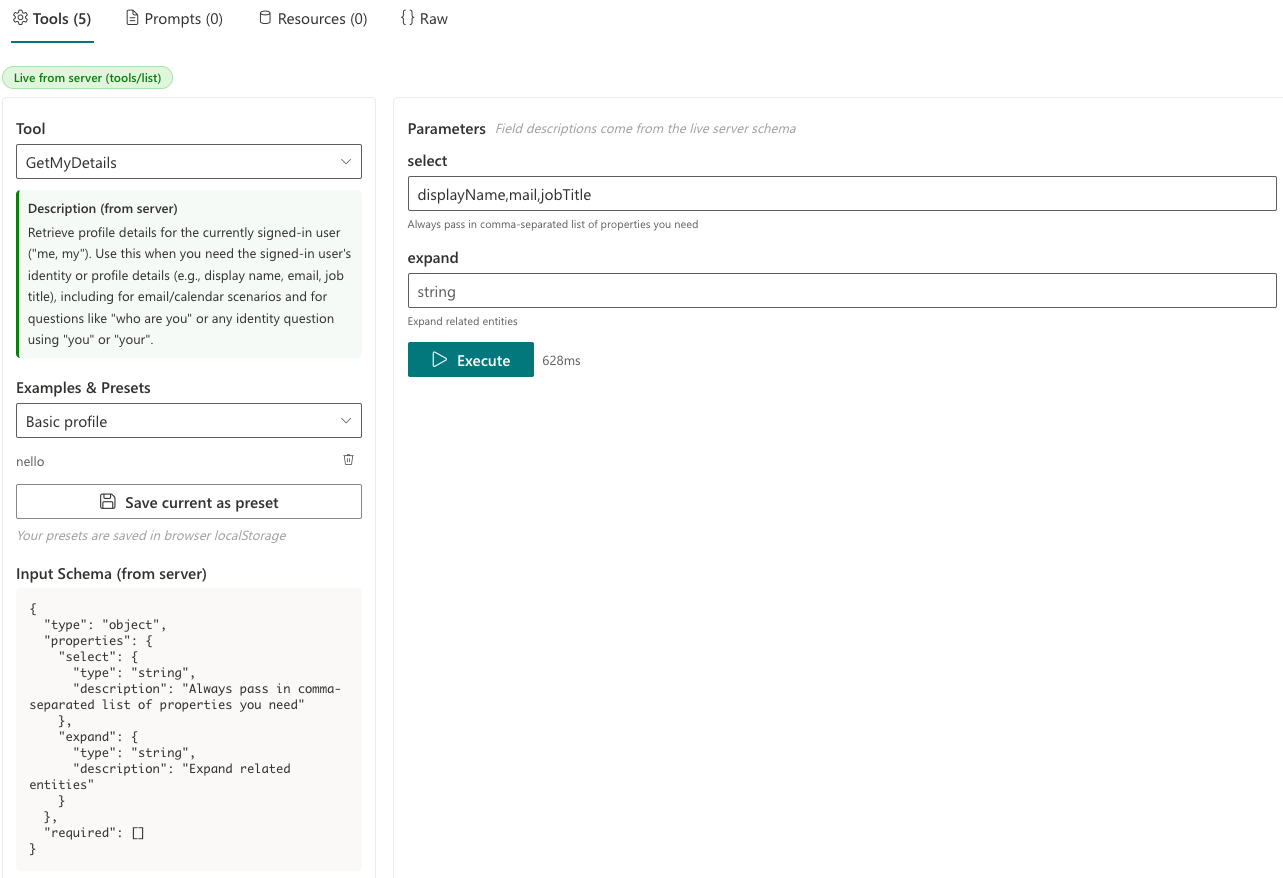
The screenshot shows this in action: the tool description and parameter fields are generated entirely from what the server returned in tools/list. These same descriptions are what an LLM would read to decide which tool to call and how to fill in the parameters. Developer and LLM see the same contract.
A Different Paradigm
It is also worth being upfront about what MCP means in practice, because it is a fundamentally different paradigm from REST APIs.
A Graph call is stateless and instant — you fire a request, get a response, done. MCP is session-based. You connect, maintain a session via the Mcp-Session-Id header, and eventually disconnect. The connection phase alone — initialize, notifications/initialized, tools/list — takes 2-3 seconds. Then each tool call goes through the Agent 365 gateway, adding latency that a direct Graph call does not have.
This means you need to think about things that REST developers rarely worry about: connection timeouts, session expiry, reconnection logic, and the fact that the first call to a server involves a multi-step handshake before any actual work happens.
The performance is not yet optimal at the time of writing. But the direction is clear — and the trade-off is intentional. What you lose in raw speed, you gain in discoverability and standardization. Every MCP server speaks the same protocol. An LLM that can call one server can call any other without additional integration code. For building AI-powered applications, that trade-off is worth it.
The value of MCP is that it bridges both worlds. Humans can use it for exploration and testing. LLMs can use it for autonomous action. Same protocol, same tools, different callers.
From Tooling to MCP365 Explorer
When I started working with the Agents 365 MCP servers, I needed to understand them at the protocol level. What does the handshake look like? What does the server actually return for tools/list? How do the schemas differ between servers? What’s in the response content? Where does the session ID come from?
I built tooling to answer those questions — connect, discover, inspect schemas, test individual calls, and see what came back. That tooling eventually became part of GriMoire , my SharePoint Hackathon 2026 submission, where it is used in a more advanced way with LLM-driven tool selection across multiple servers.
But the tooling itself is useful on its own. So I’ve restructured it into a series of standalone SPFx webparts — one per server — so each can be deployed independently with its own permission scope. No backend required. No LLM required. Just connect, discover, and test. That is MCP365 Explorer.
What This Series Covers
There are 7 Agents 365 MCP servers we’ll cover in this series, exposing nearly 100 tools in total:
| Server | ID | Tools | Scope |
|---|---|---|---|
| User Profile | mcp_MeServer |
5 | McpServers.Me.All |
| SharePoint Lists | mcp_SharePointListsTools |
13 | McpServers.SharepointLists.All |
| Outlook Calendar | mcp_CalendarTools |
13 | McpServers.Calendar.All |
| Outlook Mail | mcp_MailTools |
21 | McpServers.Mail.All |
| SharePoint & OneDrive | mcp_ODSPRemoteServer |
17 | McpServers.OneDriveSharepoint.All |
| Teams | mcp_TeamsServer |
26 | McpServers.Teams.All |
| Word | mcp_WordServer |
4 | McpServers.Word.All |
This is a multi-part series. Each post will cover one server with a matching open-source webpart. We’ll go from simple (User Profile, 5 tools) to complex (Teams, 26 tools), building up the picture one server at a time.
The MCP Protocol in 60 Seconds
MCP uses JSON-RPC 2.0 over HTTP (the Streamable HTTP transport). The flow is straightforward:
initialize— Client sends its capabilities, server responds with its own capabilities, server info, and protocol versionnotifications/initialized— Client acknowledges the handshaketools/list— Client asks what tools are availabletools/call— Client calls a specific tool with arguments
All requests go to a single URL: https://agent365.svc.cloud.microsoft/mcp/environments/{envId}/servers/{serverId}
The server returns an Mcp-Session-Id header on the first response, and you send it back on all subsequent requests. That’s your session.
As mentioned in the introduction, the Agent 365 gateway has no CORS restrictions — SPFx webparts can call it directly from the browser. You might expect a server-to-server gateway to block browser origins, but it doesn’t. This is what makes the entire zero-backend approach possible.
Prerequisites
To use MCP365 Explorer, you need a few things in place:
-
Microsoft Frontier AI Program — Your tenant must be enrolled. See Microsoft Frontier Program enrollment and the Agent 365 overview .
-
Agent 365 Service Principal — A one-time admin operation. Run the
New-Agent365ToolsServicePrincipalProdPublic.ps1script (also included in the MCP365 Explorer repo ). Requires Application Administrator or Global Administrator role. See Microsoft’s setup guide . -
Power Platform Environment ID — The GUID of your environment, found in the Power Platform admin center . See how to find your environment ID . You’ll enter this in the webpart property pane.
-
API Permission Approval — After deploying the
.sppkg, a SharePoint admin approves the permission request (e.g.,McpServers.Me.All) in the SharePoint admin center under API Management. -
Development Environment — Node.js 22+, SPFx 1.22 with Heft. No Azure backend or AI models needed — MCP365 Explorer calls the MCP servers directly from the browser.
Hands-On: The User Profile Server
Now let’s get concrete. The User Profile server (mcp_MeServer) is the simplest of the available servers — just 5 tools — which makes it the perfect starting point.
| Property | Value |
|---|---|
| Server ID | mcp_MeServer |
| Permission scope | McpServers.Me.All |
| Tools | 5 |
| Protocol version | 2025-03-26 |
| Gateway server | Microsoft.MCPPlatform.WebApi |
The server gives you access to the Entra ID user directory — your own profile, other people’s profiles, manager chains, and org structure. Think of it as the MCP equivalent of Microsoft Graph’s /users endpoint, but with tool-level granularity and built-in natural-language descriptions.
What the Explorer Shows You
When you connect, the webpart performs the MCP handshake and shows you everything the server exposes:
Server Info Panel — The server identifies itself, its version, the protocol it speaks, your session ID, and which MCP capabilities it supports (tools, prompts, resources, logging). All four are advertised, though only tools return actual content for this server.
Tool Browser — A dropdown of the 5 discovered tools, each with its full description as the server wrote it — not our summary, but the server’s own text. A green badge indicates you’re seeing live data from tools/list, not a hardcoded catalog.
Parameter Form — Auto-generated from the tool’s inputSchema. Each field shows its type, whether it’s required, and the server’s description as help text. This is where MCP shines: the form is built from runtime-discovered metadata, not documentation you read somewhere.
Formatted Response — When you execute a tool, the response is parsed: embedded JSON is extracted and prettified, Graph serialization noise (backingStore, odataType, internal metadata) is stripped, and HTML content is cleaned to plain text. A raw JSON view is always available alongside.
Log Viewer — A searchable, sortable table showing every JSON-RPC exchange: direction (send/receive), type (mcp/http), method name, timing. Double-click any row to expand its data payload.
Parameter Forms are Generated from the Server Schema
When you select a tool, the parameter form on the right is built from the inputSchema that the server returned in tools/list. The field names, types, required markers, and descriptions all come from the server — the webpart does not know in advance what parameters a tool expects.
This means that if Microsoft adds a new tool to a server, it will appear in the Explorer without any code change — just reconnect. The only things we add on top are educational example presets (clearly labeled) and the option to save your own presets to browser localStorage.
Building the McpBrowserClient
One key decision: I did not use the @modelcontextprotocol/sdk. SPFx is built with Node.js tooling, but the webpart itself runs in the browser — and the MCP SDK relies on Node.js-specific APIs (http, streams) that are not available in a browser runtime. Instead, I built a minimal client using the browser’s native fetch and the JSON-RPC 2.0 protocol directly. The entire implementation is about 150 lines.
The connect flow:
// 1. Initialize — tell the server who we are
const initResult = await sendRequest('initialize', {
  protocolVersion: '2025-03-26',
  capabilities: {},
  clientInfo: { name: 'mcp365-explorer', version: '1.0.0' }
});

// 2. Acknowledge — the server expects this notification
await sendNotification('notifications/initialized');

// 3. Discover tools
const { tools } = await sendRequest('tools/list');

// 4. Also discover prompts and resources (if advertised)
const { prompts } = await sendRequest('prompts/list');
const { resources } = await sendRequest('resources/list');
Authentication uses SPFx’s AadTokenProvider:
const token = await tokenProvider.getToken('ea9ffc3e-8a23-4a7d-836d-234d7c7565c1');
That token goes into the Authorization: Bearer header on every request. The server returns an Mcp-Session-Id header which we track and send back — that’s the session.
The Five Tools
GetMyDetails — The simplest call. No required parameters — just select and expand to control what comes back. The expand: manager option gives you the full manager profile in a single call.
GetUserDetails — Look up a specific person by UPN or Entra object ID. The server’s description is precise and instructive:
“userPrincipalName (UPN) or Entra object ID (GUID). Use ‘me’ for the signed-in user. DO NOT pass display names or SMTP email addresses — use GetMultipleUsersDetails for those.”
This is MCP documentation delivered at runtime. An LLM reading this schema knows exactly what to pass and what to avoid. A developer exploring the tool sees the same guidance in the parameter form.
GetMultipleUsersDetails — Search for multiple users by name, job title, office location, or other properties. The searchValues parameter is an array — you can search for several terms at once.
GetManagerDetails — Returns a user’s manager. Pass "me" for the current user’s manager, or a specific user identifier.
GetDirectReportsDetails — The inverse of GetManagerDetails — returns the people who report to a given user. Useful for building org charts or understanding team structures.
What I Learned
The server is the source of truth. Our hardcoded catalog had slightly different descriptions than what the live server returns. The server’s descriptions are more detailed, more current, and include explicit warnings. Always prefer live discovery.
Capabilities are advertised but not always populated. The User Profile server advertises support for prompts and resources, but both return empty lists. This is the gateway platform advertising its protocol capabilities, not the individual server. Other servers may have content here.
No backend needed. The CORS-free gateway means SPFx can talk to MCP servers directly. For educational and testing purposes, this eliminates the entire backend layer — a significant simplification.
The schema IS the documentation. Each tool’s inputSchema contains everything you need: parameter names, types, whether they’re required, and natural-language descriptions. The Explorer generates its entire parameter form from this metadata at runtime.
Deploy It Yourself
- Clone the repo:
git clone https://github.com/ferrarirosso/mcp365-explorer - Build:
cd webparts/mcp365-user-profile && npm install && npx heft build --clean - Package:
npx heft test --clean --production && npx heft package-solution --production - Upload
sharepoint/solution/mcp365-user-profile.sppkgto your app catalog - Approve the
McpServers.Me.Allpermission in SharePoint admin center - Add the webpart to a page and configure the Environment ID in the property pane
Resources
- MCP365 Explorer Source Code
- Agent 365 Tooling Servers Overview
- Model Context Protocol Specification
- GriMoire Website
- Painting GriMoire — Previous Post
- SPFx Development Documentation
- Next in series: SharePoint Lists — 13 tools for list and item management