


Part six of the MCP365 Explorer series
takes on a brand-new server: mcp_OneDriveRemoteServer, the dedicated Work IQ OneDrive MCP server. Until recently, OneDrive operations were bundled into mcp_ODSPRemoteServer alongside SharePoint — a combined 17-tool surface that tried to cover both worlds. That combined server is now deprecated in favor of two focused servers: mcp_SharePointRemoteServer (covered in part 2
) and this one, scoped squarely to the user’s personal OneDrive.
The split is visible right in the tool names: findFileOrFolderInMyDrive, createFolderInMyOnedrive, readSmallTextFileFromMyOnedrive, getFileOrFolderMetadataInMyOnedrive. Microsoft isn’t being coy — these only touch your personal drive, and the names say so out loud. For an LLM picking a tool at runtime, and for a developer grepping schemas, that explicit scope is genuinely helpful.
As with the other servers in this series, the Work IQ MCP servers are in preview and may change.
The Showcase
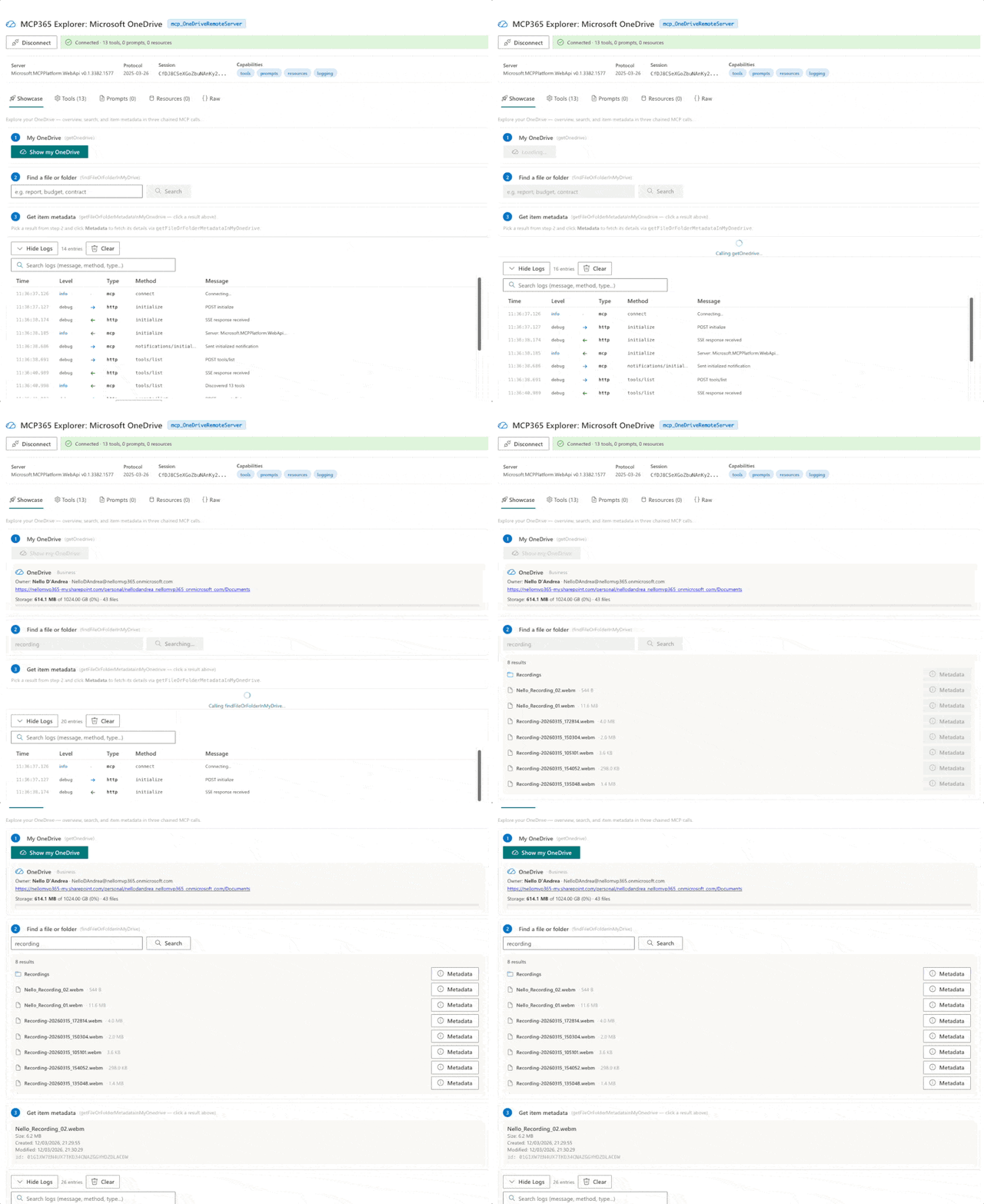
The OneDrive Explorer showcase chains three calls:
Show my OneDrive (getOnedrive) : a no-argument call that returns the user’s drive metadata — name, owner, webUrl, driveType, and a full quota object (used / total / remaining / fileCount). The webpart renders this as an overview card with a storage progress bar. It’s the fastest sanity check that the connection and scope are set up correctly.
Find a file or folder (findFileOrFolderInMyDrive) : a single searchQuery parameter, name or partial name. Returns an array of DriveItems matching the query, which the webpart shows as a list of rows with name, size, and a Metadata button on each.
Get item metadata (getFileOrFolderMetadataInMyOnedrive) : clicking the Metadata button on a search result calls this with { fileOrFolderId: hit.id } — the stable ID from the previous call — and renders name, size, createdDateTime, and lastModifiedDateTime for the selected item.
Tool Composition in Practice
{} (no args)"] -- "returns name, quota, owner" --> B["Overview card"] C["findFileOrFolderInMyDrive
searchQuery: text"] -- "returns DriveItems with id" --> D["Select a hit"] D -- "fileOrFolderId: hit.id" --> E["getFileOrFolderMetadataInMyOnedrive"] E -- "returns full metadata" --> F["Name, size,
created / modified,
id"]
The discovery pattern is consistent with the earlier posts in this series — each step narrows the scope, and an ID from one call becomes the argument of the next. The difference here is that steps 1 and 2 are independent top-level queries on the same drive. Step 1 tells you what you have, step 2 tells you how to find it. Then steps 2 → 3 chain the traditional way: search → drill in.
What I Learned
Scope is baked into the tool names. findFileOrFolderInMyDrive is not ambiguous: it will not search SharePoint, it will not search shared drives, it will not search Teams files. The explicit naming is unusual — most Work IQ servers use generic verbs like ListMessages or GetEvent — and I suspect it’s a deliberate response to the confusion the combined SharePoint+OneDrive server created. When you’re working in a world where an LLM picks tools at runtime, naming the scope is cheaper than fighting hallucinations later.
A 13-tool CRUD surface, behind one scope. The server exposes read and write operations: createSmallTextFileInMyOnedrive, createFolderInMyOnedrive, renameFileOrFolderInMyOnedrive, moveSmallFileInMyOnedrive, deleteFileOrFolderInMyOnedrive, shareFileOrFolderInMyOnedrive, setSensitivityLabelOnFileInMyOnedrive. All of that is behind a single McpServers.OneDrive.All permission — you approve once, and your webpart can fully manage the user’s personal files. That’s considerably less scaffolding than the equivalent Microsoft Graph permission matrix (Files.ReadWrite, Files.ReadWrite.All, Sites.ReadWrite.All, etc.) would require.
The webUrl trap in search results. This one cost me some time. Search hits from findFileOrFolderInMyDrive return webUrl values that don’t point to the file itself — they point to SharePoint’s DispForm.aspx?ID=N search-result form page. Calling getFileOrFolderMetadataByUrl with one of those URLs returns a 403 (wrapped in a { "Error": "Tool Request Failed", "StatusCode": 403 } payload rather than the standard MCP isError: true — another thing the webpart has to detect). The fix is simple once you see it: use the item id from the search result, not the webUrl. getFileOrFolderMetadataInMyOnedrive takes an ID and resolves directly. For consistency, when you want metadata on a hit, always reach for the ID-based tool; keep getFileOrFolderMetadataByUrl for the case where you already have a canonical file URL from somewhere else.
getOnedrive is the cheapest “are we connected?” check. No arguments, fast, and the response includes the owner’s display name, email, and full quota breakdown. It’s now my go-to smoke test for any new tenant: if getOnedrive returns a sensible fileCount and used / total values, the scope and service principal are wired up correctly.
Server Details
| Property | Value |
|---|---|
| Server ID | mcp_OneDriveRemoteServer |
| Display name | Work IQ OneDrive |
| Permission scope | McpServers.OneDrive.All |
| Tools | 13 |
| Replaces | mcp_ODSPRemoteServer (deprecated) |
Tool Reference
Drive: getOnedrive
Browse & Read: getFolderChildrenInMyOnedrive, findFileOrFolderInMyDrive, getFileOrFolderMetadataInMyOnedrive, getFileOrFolderMetadataByUrl, readSmallTextFileFromMyOnedrive
Create: createSmallTextFileInMyOnedrive, createFolderInMyOnedrive
Modify: renameFileOrFolderInMyOnedrive, moveSmallFileInMyOnedrive, deleteFileOrFolderInMyOnedrive
Share & Govern: shareFileOrFolderInMyOnedrive, setSensitivityLabelOnFileInMyOnedrive
Deploy It Yourself
Same flow as the other webparts: clone, cd webparts/mcp365-onedrive, build, upload the .sppkg, approve McpServers.OneDrive.All. Full steps and prerequisites in the README
.