


This is the second post in the MCP365 Explorer series . If you haven’t read the introduction, start there, it covers the setup, the protocol, and why MCP servers can be called directly from SPFx without a backend.
Today we look at the Work IQ SharePoint server (mcp_SharePointRemoteServer), with 35 tools, it is the most complete Work IQ MCP server available at this point. It covers sites, lists, columns, items, document libraries, files, folders, sharing, and sensitivity labels. For those of us who have been working with SharePoint for years, this is the one we’ve been waiting for — our beloved SharePoint, now accessible through a standardized protocol that an LLM can discover and call at runtime.
Preview notice: The Agents 365 Tools and MCP servers described in this post are part of the Microsoft Agent 365 tooling servers preview . These features are in preview, may change, and should not be used in production workloads.
Table of Contents
- Table of Contents
- The Server at a Glance
- What You Can Do
- Exploring the 35 Tools
- The Showcase: Document Library, Folder, and File Upload
- What I Learned Along the Way
- From Explorer to GriMoire
- Deploy It Yourself
- Resources
The Server at a Glance
| Property | Value |
|---|---|
| Server ID | mcp_SharePointRemoteServer |
| Display name | Work IQ SharePoint |
| Permission scope | McpServers.SharePoint.All |
| Tools | 35 |
This is a consolidated server that merges what used to be two separate servers (SharePoint Lists and SharePoint & OneDrive) into one. It covers the full lifecycle of SharePoint: sites, lists, columns, items, document libraries, files, and folders.
What You Can Do
The 35 tools break down into clear categories:
Site discovery:
findSite— find sites by name or browse accessible sitesgetSiteByPath— resolve a site by its exact URL pathlistSubsites— list child sites
Document libraries & files:
listDocumentLibrariesInSite— list all doc librariesgetDefaultDocumentLibraryInSite— get the default doc librarygetFolderChildren— browse folder contentsfindFileOrFolder— search for files across all sitesgetFileOrFolderMetadata/getFileOrFolderMetadataByUrl— file metadatacreateSmallTextFile/createSmallBinaryFile— create files (≤5MB)readSmallTextFile/readSmallBinaryFile— read filescreateFolder— create foldersrenameFileOrFolder— rename files or foldersdeleteFileOrFolder— delete files or foldersmoveSmallFile— move files within a doc librarycopyFileOrFolder— async copy across doc librariesuploadFileFromUrl— upload from a SharePoint/OneDrive URLcheckOperationStatus— check async operation progress
List management:
listLists— get all lists on a sitecreateList— create a new list (with optional inline column definitions)deleteList— delete a list
Column management:
listColumns— get column definitionscreateColumn— add a column (supports 20+ column types)updateColumn— update column propertiesdeleteColumn— remove a column
Item management:
listListItems— get items from a listgetListItem— get a single item by IDcreateListItem— add a new item (fields format:[{Key, Value}])updateListItem— update an existing itemdeleteListItem— remove an item
That is a lot of surface area : 35 tools covering everything from finding a site to uploading files and managing sensitivity labels.
Sharing & security:
shareFileOrFolder— share with role-based permissionssendInviteForList— share listssetSensitivityLabelOnFile— apply sensitivity labels
Exploring the 35 Tools
With the Explorer’s Tools tab, you can connect to the server, browse all 35 tools, inspect their live schemas, fill in parameters, and execute any of them directly. The parameter forms are auto-generated from what the server returns, if Microsoft adds or changes a tool, the Explorer picks it up automatically on the next connect.
But to show how tools chain together in practice, the Explorer also includes a guided showcase.
The Showcase: Document Library, Folder, and File Upload
The showcase demonstrates three tools that work together — getting the current site’s document library, creating a folder, and uploading a file using the PnP React Controls FilePicker .
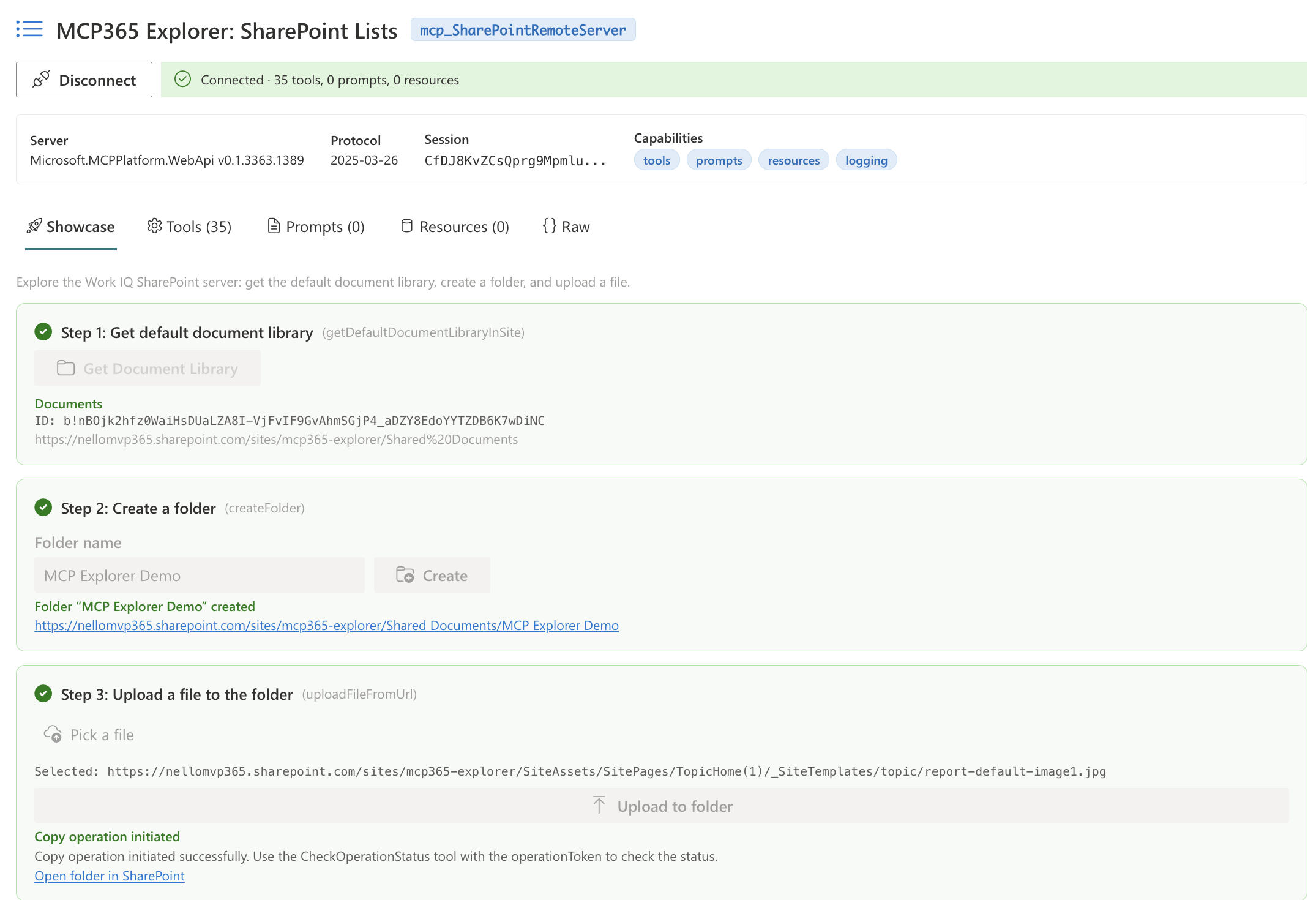
Step 1 — Get the document library. A getDefaultDocumentLibraryInSite call on the current site returns the default document library with its ID, name, and URL.
Step 2 — Create a folder. A createFolder call creates a named folder in the document library. The response includes the folder’s webUrl — the showcase shows this as a clickable link so you can open it directly in SharePoint.
Step 3 — Upload a file. The PnP FilePicker lets you browse SharePoint and OneDrive to select a file, then uploadFileFromUrl copies it into the created folder.
What I Learned Along the Way
Microsoft merged the old mcp_SharePointListsTools (13 tools) and mcp_ODSPRemoteServer (17 tools) into a single mcp_SharePointRemoteServer with 35 tools. The old servers are deprecated since March 13, 2026 but still work for existing connections.
The picture is becoming clearer: what started as “Agents 365 Tools” is now Work IQ Tools — the umbrella for all MCP capabilities in the Microsoft 365 ecosystem. The servers are being rebranded as “Work IQ” (Work IQ SharePoint, Work IQ Calendar, Work IQ Mail, etc.), consolidated where it makes sense, and the tooling is maturing fast. This is Microsoft’s standardized way of giving LLMs and developers a programmatic access to the entire M365 surface.
Some write operations like createList are not yet available on the new server at the time of writing. This is expected to be resolved shortly as the preview matures.
The response format is cleaner. The new server returns clean JSON directly — no more double-escaped {message, response} wrapping that the old server used. This is a welcome improvement.
The Agent 365 CLI helps with scope discovery. The correct scope for each server isn’t documented in the server reference pages. I used a365 develop list-available from the Agent 365 CLI
to confirm McpServers.SharePoint.All as the scope for the new server.
From Explorer to GriMoire
In GriMoire , the same SharePoint MCP server is used with an LLM in the loop. A user says “upload this file to the Marketing folder” and the LLM chains the calls — find the site, get the doc library, locate the folder, upload the file — but it decides which tools to call and how to fill the parameters from the natural language request. The Hybrid Interaction Engine keeps the LLM aware of what’s on screen.
The Explorer strips all of that away and lets you see the raw tools, the raw parameters, and the raw responses. Same server, different interface.
Deploy It Yourself
- Clone the repo:
git clone https://github.com/ferrarirosso/mcp365-explorer - Build:
cd webparts/mcp365-sharepoint-lists && npm install && npx heft build --clean - Package:
npx heft test --clean --production && npx heft package-solution --production - Upload
sharepoint/solution/mcp365-sharepoint-lists.sppkgto your app catalog - Approve the
McpServers.SharePoint.Allpermission in SharePoint admin center - Add the webpart to a page and configure the Environment ID
Note: Microsoft recently renamed the service principal from “Agent 365 Tools” to “Work IQ Tools”. The webparts in the repo are configured for the new name. If your tenant still uses the old name, see the README for instructions on how to adjust
package-solution.json.
Resources
- MCP365 Explorer Source Code
- Series Introduction — Previous Post
- Work IQ SharePoint MCP Server Reference
- Agent 365 Tooling Servers Overview
- Agent 365 CLI
- GriMoire Website
- Next in series: Outlook Calendar — 13 tools for events, meetings, and availability