


Microsoft 365 rests on three pillars: mail with Exchange and Outlook, files with SharePoint and OneDrive, and real-time collaboration with Microsoft Teams. After covering Mail
and SharePoint
earlier in the MCP365 Explorer series
, this post explores the third: mcp_TeamsServer — one of the largest Work IQ MCP servers with 28 tools covering teams, channels, chats, messages, members, and search, all behind a single scope (McpServers.Teams.All).
As with the other servers in this series, the Work IQ MCP servers are in preview and may change.
The Showcase
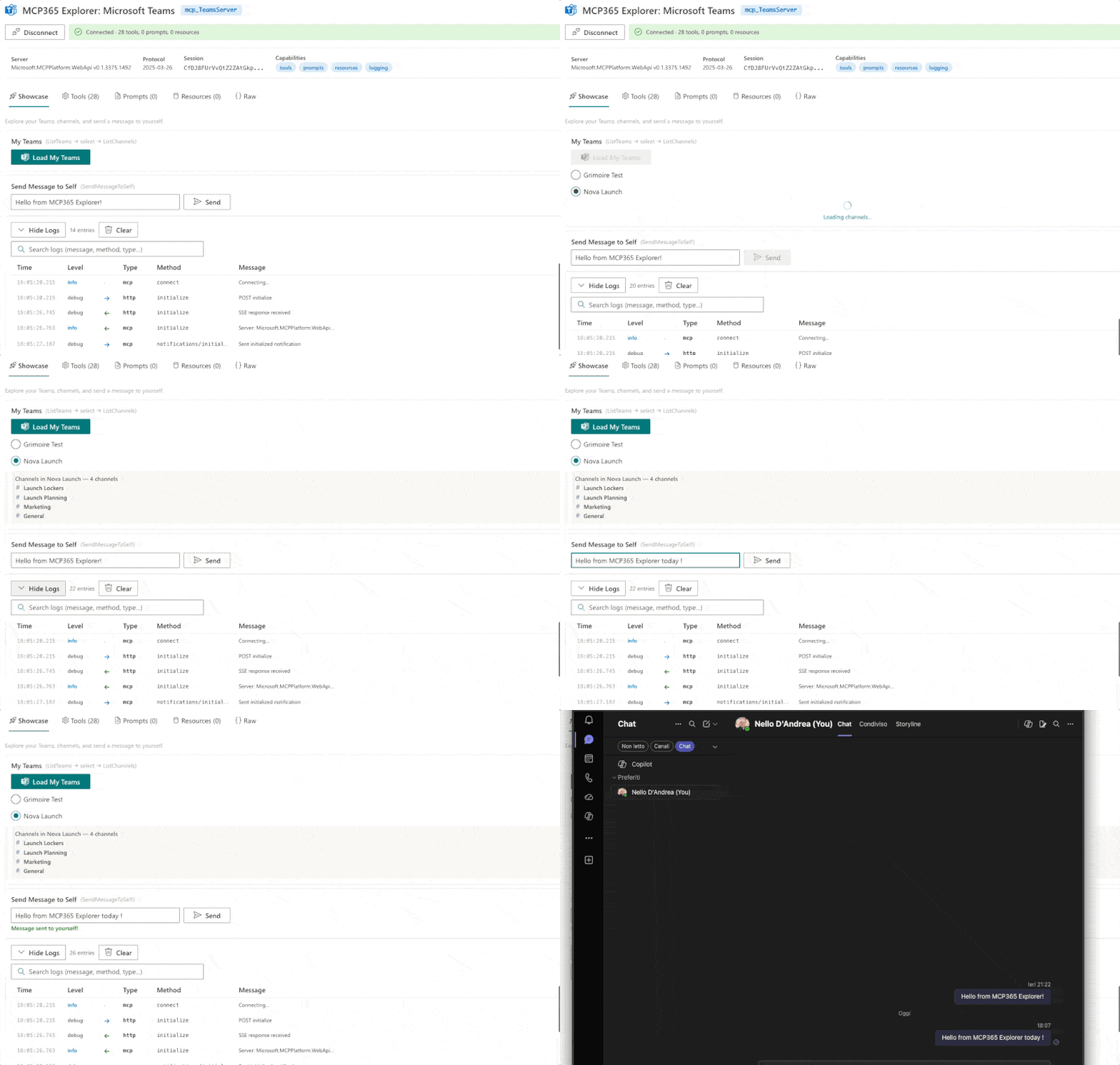
The Teams Explorer showcase demonstrates a chained flow and a quick action:
Load My Teams → Select → Channels : clicking “Load My Teams” calls ListTeams with the current user’s Entra Object ID (GUID). The teams appear as selectable radio buttons. Selecting a team automatically calls ListChannels and displays the channels for that team. This shows how MCP tools chain naturally — the output of one call feeds the next.
Send Message to Self : a text field and send button that calls SendMessageToSelf. Type a message, hit send, and it appears in your Teams “chat with yourself.” Quick proof that write operations work through MCP.
Tool Composition in Practice
The showcase demonstrates a pattern that keeps showing up across MCP servers: the output of one tool provides the input for the next.
ListTeams returns an array of team objects, each with an id. When you select a team, that id becomes the teamId parameter for ListChannels. Each step narrows the scope — from all your teams to one team’s channels — with one ID bridging the two calls.
userId: GUID"] -- "returns team.id" --> B["Select Team
user picks one"] B -- "teamId" --> C["ListChannels
teamId: selected ID"] C -- "returns channels" --> D["General
Announcements
Random
..."]
This is the same pattern I used in the SharePoint showcase (get library → create folder → upload file) and in the Calendar showcase (list events → drill into details). The Teams hierarchy goes deeper — teams → channels → messages → replies — each level unlocked by a single ID from the previous call.
For an LLM agent, this means it can navigate the full Teams hierarchy by making a sequence of tool calls, each informed by the last. For a developer building a UI, it means progressive disclosure — show teams first, expand on click — with each tool call feeding the next.
What I Learned
28 tools covering the full Teams surface : from listing teams to posting channel messages to managing members, both read and write operations.
User identity matters. ListTeams requires the user’s Entra GUID (not email, not “me”). I get this from SPFx’s pageContext.aadInfo.userId. The schema explicitly says “Do not send ‘me’ as userId” — a clear instruction for LLMs that also helps developers avoid a common mistake.
SendMessageToSelf is a useful test. Unlike other messaging tools that require a chat ID or channel ID, SendMessageToSelf just takes a content parameter. It’s the simplest way to verify that the Teams MCP connection works end-to-end — you send a message and immediately see it in Teams.
Tool Reference
Teams: ListTeams, GetTeam
Channels: ListChannels, GetChannel, CreateChannel, CreatePrivateChannel, UpdateChannel
Chats: ListChats, GetChat, CreateChat, DeleteChat, UpdateChat
Messages: ListChatMessages, ListChannelMessages, PostMessage, SendMessageToSelf, PostChannelMessage, GetChatMessage, UpdateChatMessage, DeleteChatMessage, ReplyToChannelMessage
Members: ListChatMembers, ListChannelMembers, AddChatMember, AddChannelMember, UpdateChannelMember
Search: SearchTeamsMessages, SearchTeamMessagesQueryParameters
Deploy It Yourself
Same flow as the other webparts: clone, cd webparts/mcp365-teams, build, upload the .sppkg, approve McpServers.Teams.All. Full steps and prerequisites in the README
.