


Content Security Policy (CSP) enforcement is coming to SharePoint Online on March 1, 2026. In this post, I’ll share practical findings from preparing SPFx solutions for CSP compliance.
Table of Contents
- What is CSP and Why Should You Care?
- Testing Your Solutions Before Enforcement
- Finding #1: External Scripts from SiteAssets Work
- Finding #2: Whitelisting External CDNs (Google Tag Manager)
- How to Whitelist External Script Sources
- Practical Example: Converting Inline Scripts
- Conclusion
What is CSP and Why Should You Care?
Content Security Policy is a security standard that helps prevent cross-site scripting (XSS) attacks by controlling which scripts can execute on a page. Starting March 1, 2026, SharePoint Online will enforce CSP, which means:
- Inline scripts will be blocked - JavaScript embedded directly in HTML
- Untrusted external scripts will be blocked - Scripts from domains not explicitly whitelisted
- Same-origin scripts are allowed - Scripts from your tenant’s SiteAssets and ClientSideAssets
If your SPFx solutions or customizations rely on inline scripts or external CDNs, they may stop working after enforcement begins.
Good news: You can delay enforcement by 90 days (until June 1, 2026) using:
Set-SPOTenant -DelayContentSecurityPolicyEnforcement $true
Testing Your Solutions Before Enforcement
The SharePoint Online and SPFx Team have paved the way for a smooth transition ❤️.There are a lot of tools which you can leverage to test now if your SPFx solutions are compatible with the new CSP policy. You don’t have to wait until March 2026 to test. SharePoint Online currently runs CSP in reporting mode, which means violations are logged but not blocked. You can force enforcement mode for testing by adding a URL parameter, so if your SharePoint Page with your SPFx solutions still behave correctly, you don’t need to bother :
https://yourtenant.sharepoint.com/sites/yoursite?csp=enforce
I used it to see what would happen to a page if the SPFx solution was not working and also to test if the fix was working. That’s a really cool way to help developers move forward with this!
Where to see violations:
- Browser Developer Tools (F12) - Check the Console tab for CSP errors
- Microsoft Purview - Search for “Violated Content Security Policy” in the Audit solution
When you see a violation in the console, it will tell you exactly which script was blocked and why. This is invaluable for identifying what needs to be fixed.
Finding #1: External Scripts from SiteAssets Work
One of my key discoveries was that scripts loaded from SiteAssets work perfectly under CSP. This is because SharePoint’s CSP includes 'self' in the script-src directive, which allows same-origin scripts.
This means you can:
- Deploy JavaScript files to
/sites/yoursite/SiteAssets/scripts/ - Reference them with
<script src="/sites/yoursite/SiteAssets/scripts/myscript.js"></script> - They will load successfully even with CSP enforcement
The Script Editor webpart continues to work! If you have inline scripts in your Script Editor webparts today, here’s the migration pattern I used across many of my solutions:
- Move your inline code to an external
.jsfile - Upload it to SiteAssets (e.g.,
/sites/yoursite/SiteAssets/scripts/myscript.js) - Update the Script Editor to reference the external file instead:
<script src="/sites/yoursite/SiteAssets/scripts/myscript.js"></script>
That’s it - your Script Editor webpart will continue to work under CSP enforcement. I updated dozens of scripts this way and they all work perfectly.
Why does this work?
According to Microsoft’s CSP documentation
, the CSP header includes the 'self' directive, which trusts all scripts from the same origin. Since SiteAssets are hosted on the same SharePoint tenant domain, they’re implicitly trusted - no whitelisting required.
Finding #2: Whitelisting External CDNs (Google Tag Manager)
If you’re using Google Tag Manager or other external analytics scripts, you’ll see CSP violations because googletagmanager.com is not trusted by default.

The solution: Add the external domains to SharePoint’s Trusted Script Sources.
For Google Tag Manager to work properly, I had to whitelist three URLs:
| URL | Purpose |
|---|---|
https://www.googletagmanager.com |
Loads the GTM container script |
*.google-analytics.com |
GA4 tracking (includes regional endpoints) |
https://www.gstatic.com |
GTM internal dependencies |
Note: I don’t use Google Ads. If you do, you may need to whitelist additional domains like googleadservices.com or doubleclick.net.
You can add these via the SharePoint Admin Center or PowerShell:
Add-SPOContentSecurityPolicy -Source "https://www.googletagmanager.com"
Add-SPOContentSecurityPolicy -Source "*.google-analytics.com"
Add-SPOContentSecurityPolicy -Source "https://www.gstatic.com"
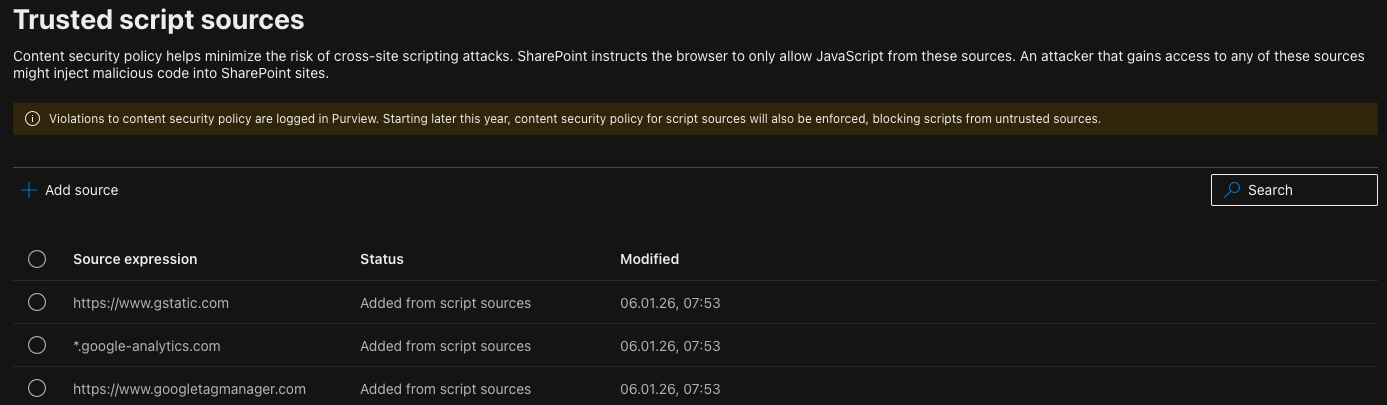
After whitelisting, the GTM scripts load without any CSP violations.
How to Whitelist External Script Sources
You have two options for whitelisting external domains:
Option 1: SharePoint Admin Center
- Navigate to SharePoint Admin Center
- Go to Advanced → Script sources
- Add the trusted domain (e.g.,
https://www.googletagmanager.com)
Option 2: PowerShell
Using SPO Management Shell :
Add-SPOContentSecurityPolicy -Source "https://www.googletagmanager.com"
Practical Example: Converting Inline Scripts
Let’s walk through a practical example of converting an inline script to a CSP-compliant external script.
Before: Inline Script (Will Be Blocked)
Imagine you have a Script Editor web part with this inline code:
<script>
  function showMessage() {
    alert('Hello from inline script!');
  }
  document.addEventListener('DOMContentLoaded', showMessage);
</script>
This will be blocked by CSP because it’s inline JavaScript.
After: External Script (CSP Compliant)
Step 1: Create an external JavaScript file
Create a file called myscript.js:
/**
 * My Custom Script - CSP Compliant Version
 */
(function() {
  'use strict';

  function showMessage() {
    alert('Hello from external script!');
  }

  document.addEventListener('DOMContentLoaded', showMessage);
})();
Step 2: Upload to SiteAssets
Upload the file to your site’s SiteAssets library:
/sites/yoursite/SiteAssets/scripts/myscript.js
Step 3: Reference the external script
Update your Script Editor web part to reference the external file:
<script src="/sites/yoursite/SiteAssets/scripts/myscript.js"></script>
Result: The script now loads from a trusted same-origin location and works with CSP enforcement.
Deployment Automation
For automated deployments (e.g., using PnP PowerShell), you can:
- Upload scripts to SiteAssets as part of your deployment pipeline
- Use placeholder URLs in your configuration that get replaced at deployment time
- Reference scripts using relative paths like
{SiteUrl}/SiteAssets/scripts/myscript.js
Conclusion
CSP enforcement is coming, but with proper preparation, your SharePoint solutions will continue to work seamlessly. The key takeaways:
- Test now using
?csp=enforce- Don’t wait until March 2026 - Move inline scripts to SiteAssets - Same-origin scripts are trusted
- Whitelist external CDNs - Use the Admin Center or PowerShell
- Check your browser console - CSP violations are clearly logged
The good news from my audit: most of my SPFx solutions required no changes. The few that did were easily fixed by externalizing inline scripts or whitelisting CDN domains.
Start testing today, and you’ll be well prepared when CSP enforcement begins.
References: