


If you’ve been pushing your developers toward Sites.Selected instead of Sites.ReadWrite.All, you’ve done the right thing. Every integration now touches only the site it needs. But a few months in, someone from security or audit will ask a simple question: which apps have access to which sites, who approved it, and is it still needed? For most tenants, the honest answer is “we’d have to go and look, site by site”.
This post, and the community call demo it accompanies, is about closing that gap. I’ll walk through PuntoBello SPO Permissions Governance, an open-source solution we built to manage the full lifecycle of Sites.Selected permissions: request, approval, grant, yearly recertification and automatic revocation. It also finds the permissions nobody asked for.
Companion to the community call: this post goes deeper than the 12-minute session. The code is on GitHub at diemobiliar/puntobello-spopermissionsgov .
Sites.Selected: least privilege for apps, finally
The classic way to let an app talk to SharePoint is a tenant-wide application permission like Sites.Read.All or Sites.ReadWrite.All. As the name says, the app can then read or write every site in the tenant. One integration that needs one project site ends up with the same reach as a global backup tool. That is a huge blast radius, and auditors love to flag it.
Sites.Selected flips the model. The app registration declares the permission, an admin consents to it, and at that point the app has access to nothing. Access only exists once someone explicitly grants the app a role (read, write, owner or full control) on a specific resource. Microsoft has since extended the idea below site level, so today there’s a small family of “selected” permissions:
| Permission | API | Scope of a single grant |
|---|---|---|
Sites.Selected |
Microsoft Graph | One site |
Sites.Selected |
SharePoint Online | One site |
Lists.SelectedOperations.Selected |
Microsoft Graph | One list or library |
ListItems.SelectedOperations.Selected |
Microsoft Graph | One list item |
Files.SelectedOperations.Selected |
Microsoft Graph | One file |
The principle is the same across all five: the app gets exactly the resource it needs, nothing more. If you want the background, Microsoft’s overview of selected permissions is a good starting point.
The governance gap nobody talks about
Sites.Selected sounds great, and it is. But the technology supporting scoped access does not mean your organisation controls it. Two things are missing out of the box.
The first is process. Granting access is a single PnP PowerShell command or Graph call. An admin can declare the permission, consent to it and grant the app full control on a project site in five minutes. No ticket, no approval, no audit trail. Six months later that admin has moved on, the integration has been retired, and the app still has access to that site.
The second is visibility. Entra ID tells you that an app can use Sites.Selected, because the permission is declared on the app registration. It does not tell you which sites, lists or files that app has actually been granted. There is no screen in the admin center for that. To find out, you have to ask every site individually.
And then there’s time. Even a properly approved permission ages. Apps change owners, sites change purpose or sensitivity, projects end. Frameworks like ISO 27001 and SOC 2 ask for periodic access reviews for exactly that reason. A permission granted once and never reviewed is a permission that lingers forever.
So the questions we wanted a clean answer to were:
- Which apps in the tenant hold a Sites.Selected-family permission?
- For each grant: which resource, which role, who requested it, who approved it, and why?
- Is it still needed? And who confirmed that, and when?
- What happens if nobody answers?
What we built: one list, one job, one lifecycle
PuntoBello SPO Permissions Governance turns Sites.Selected from “an admin runs a command” into a self-service process with an audit trail. It has three moving parts:
- A SharePoint governance site with two lists. The Requests list is where app owners ask for access. The My Recertification list is the single source of truth for every managed (and unmanaged) permission in the tenant.
- A scheduled Azure Container App Job running PowerShell 7 and PnP PowerShell. It validates requests, routes approvals, grants and revokes permissions, sends mails and scans the tenant. It runs every weekday at 18:00 UTC.
- A user-assigned managed identity that the job uses for everything. There are no client secrets or certificates anywhere in the solution.
And there are three kinds of people involved:
| Role | What they do | What they see |
|---|---|---|
| App owner | Submits a request for their app: target URL, scope, read or write, business reason | Their own recertification items (read-only) |
| Site owner | Approves or rejects access to their site, and re-confirms it every year | Items for their sites, with Approve and Reject buttons |
| Governance team | Owns the process and receives the weekly report of unmanaged permissions | Everything |
The important design decision is that the site owner approves, not an admin. The person who owns the data decides who gets to touch it. The admin’s job shrinks to owning the process, not to rubber-stamping tickets they have no context for.
Everything a site owner or app owner needs happens in SharePoint and in their inbox. Nobody needs access to the Entra admin center, Azure, or PowerShell to take part.
The lifecycle, end to end, looks like this:
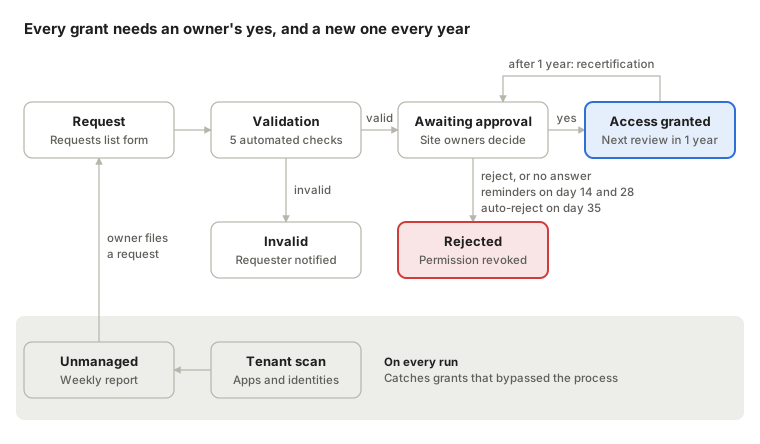
A grant only exists after a site owner says yes. It comes back for review every year, and silence for 35 days revokes it. In parallel, every run scans the tenant for grants that bypassed the process.
How it works, step by step
Let’s follow a single request through the system, from the moment an app owner fills in a form until the day the permission is either renewed or gone.
1. The request: a SharePoint form, not a ticket
The app owner opens the governance site and creates an item in the Requests list. They fill in:
- App-ID of their app registration
- Target URL of the site
- Permission scope: one of the five permissions from the table above
- Permission: read or write
- Reason: the business justification, which ends up in the audit trail
For the finer-grained scopes, two more fields appear: Target Resource Name (the list or library display name, for example Documents) and Target Resource Id (the item ID, like 42, or a file path relative to the library root, like Folder/Report.xlsx). They only show up when the chosen scope actually needs them. That is done with a conditional show/hide formula on the form fields, so a site-level request stays a five-field form.
2. Validation: catch the mistakes before anyone gets an email
On its next run, the job picks up every request with status New and checks it:
- Does the app registration exist in the tenant?
- Is the person who submitted the request an owner of that app registration?
- Does the app registration declare the requested scope as an application permission?
- Does the target site exist?
- For list, item and file scopes: does the target list, item or file exist?
Check 2 matters more than it looks. Without it, anybody could request access to any site on behalf of any app. By requiring the requester to be a registered owner of the app in Entra ID, the request carries accountability from the start.
If a check fails, the request is marked invalid and the requester gets a ValidationFailed mail. If a check can’t be completed at all, say because Graph throttled the job, the request is not rejected. It stays New and is re-evaluated on the next run. A transient error should never permanently reject a legitimate request.
3. Approval by the people who own the data
A valid request is moved to the My Recertification list. The job then works out who owns the target, which depends on what kind of site it is:
| Site type | Who approves |
|---|---|
| Group-connected site or Team site | Owners of the Microsoft 365 group |
| Private channel site | Owners of that private channel |
| Communication site or classic team site | Members of the site’s associated owners group |
The recertification item gets item-level permissions. The app owners get Read, so they can follow the status. The site owners get Modify without Delete, so they can approve or reject. Nobody else sees the item. A site owner opening the list sees only the requests for their own sites.
The site owners then get an approval mail pointing them to the governance site. In the list itself, a formatted column shows Approve and Reject buttons, built with SharePoint column formatting and setValue row actions. One click sets the status and records who took the decision in an Approval Action By field. No Power Automate flow, no custom app.
4. The grant: the job does the admin work
When the job sees an item with status Approved, it grants the permission. Each scope maps to its own PnP PowerShell cmdlet:
switch ($item['spo_PermissionScope'])
{
    { $_ -in @('Sites.Selected (Graph)', 'Sites.Selected (SPO)') }
    {
        Grant-APIPermission -AppId $appId -TargetUrl $targetUrl -PermissionLevel $permission -Connection $cnTargetSite
    }
    'Lists.SelectedOperations.Selected'
    {
        Grant-ListPermission -AppId $appId -SiteUrl $targetUrl -ListName $listName -PermissionLevel $permission -Connection $cnSite
    }
    'ListItems.SelectedOperations.Selected'
    {
        Grant-ListItemPermission -AppId $appId -SiteUrl $targetUrl -ListName $listName -ItemId $itemId -PermissionLevel $permission -Connection $cnSite
    }
    'Files.SelectedOperations.Selected'
    {
        Grant-FilePermission -AppId $appId -SiteUrl $targetUrl -LibraryName $listName -FilePath $filePath -PermissionLevel $permission -Connection $cnSite
    }
}
Under the hood these wrap Grant-PnPAzureADAppSitePermission, Grant-PnPEntraIDAppListPermission and friends. Both site owners and app owners get an ApprovedMail, and the item’s next recertification date is set one year out.
Rejection works the same way in reverse. When a site owner clicks Reject, the job revokes whatever was granted for that scope and sends a RejectedMail to everyone involved. Reject also works on an already approved item, so a site owner can pull access at any time, not only at recertification.
5. Recertification: confirm every year, or lose access
One year after approval, the item flips back to ApprovalRequested and the site owners get a RecertificationMail. From there, the same escalation runs as for a new request:
| Days without a decision | What happens |
|---|---|
| 0 | Approval or recertification mail to the site owners |
| 14 | First reminder |
| 28 | Second reminder |
| 35 | Automatic rejection: the permission is revoked and everyone is notified |
That last row is the whole point. Silence is not consent. If nobody is willing to say “yes, this app still needs access”, the access goes away. For site owners it’s a two-minute task once a year. For auditors it’s a complete answer to the access review question.
6. Finding the permissions nobody asked for
Everything so far covers permissions that went through the process. But the governance gap was about the ones that didn’t. So on every run the job also scans the tenant, looking in two places.
The first is app registrations. The job reads every application in the tenant through Graph and checks its requiredResourceAccess for the five governed app roles. Any app that declares one of them but has no entry in the My Recertification list is added with status Unmanaged.
The second is service principals without an app registration. This one took us a while to notice. Managed identities don’t have an app registration, so the first scan never sees them. But you can absolutely assign Sites.Selected to a managed identity. So the job also reads the appRoleAssignedTo collection of the Microsoft Graph and SharePoint Online service principals, and flags every principal holding a governed role. The job’s own managed identity is excluded, of course.
Unmanaged entries trigger a weekly UnmanagedMail to the governance mailbox. Once the app owner submits a proper request for that app, the unmanaged entry is removed automatically on the next run. Managed identities and multi-tenant apps are the exception. They have no app registration in your tenant, so there’s no app owner who could submit a request. They stay on the report until someone removes the permission or decides consciously to keep it. The list then gradually converges on the state you want: every app with a selected permission has an owner, a reason and a next review date.
Deployment: one azd up, zero secrets
A governance tool that takes a week to install won’t get installed. So the whole solution deploys with the Azure Developer CLI, in one command:
azd up
Behind that command, three phases run in order:
| Phase | What happens |
|---|---|
preup hook (PowerShell) |
Creates the governance site and applies the PnP provisioning template. Hides the job-managed fields from the forms, shows the target resource fields only for the scopes that need them, limits the SPOPermissionsGovUsers group to the home page, removes the Visitors group from My Recertification, and stores the site URL and tenant name in the azd environment |
| Terraform | Creates the resource group, Log Analytics workspace, container registry, storage account with a file share, the managed identity, the Container Apps environment and the job. Builds and pushes the image, uploads job/, grants the identity its permissions, then waits 3 minutes for them to propagate |
postup hook (PowerShell) |
Grants the managed identity FullControl on the governance site via Sites.Selected. Running it again doesn’t create a second grant. The governance tool governs itself the same way it governs everyone else |
The scripts aren’t baked into the container image. They’re uploaded to an Azure file share and mounted into the job at /mnt/scripts. To change a script, a mail template or the infrastructure, you edit it and run azd up again. The hooks are safe to re-run.
Why a managed identity matters here
Let’s be honest about one thing. To grant site-level permissions, an identity needs Sites.FullControl.All. Microsoft’s own docs call that requirement “necessarily high”, because a Sites.Selected grant can itself hand out full control. So the governance job is, by definition, one of the most privileged identities in your tenant.
That’s exactly why it must not have a secret. The job authenticates as a user-assigned managed identity, all the way through:
$cnSite = Connect-PnPOnline -Url $siteUrl -ManagedIdentity `
    -UserAssignedManagedIdentityClientId $env:AZURE_CLIENT_ID -ReturnConnection
There’s no client secret to rotate, no certificate in a key vault and nothing that could leak into a log or a repository. Every app role the identity holds is declared in Terraform, so its privileges are reviewable in a pull request like any other code change. If you read my post on passwordless CI/CD , this is the same idea applied to a scheduled job instead of a pipeline.
| Permission | API | Used for |
|---|---|---|
Sites.FullControl.All |
Microsoft Graph | Granting and revoking selected permissions, reading sites, lists, items and files |
Sites.FullControl.All |
SharePoint Online | Reading site owners and setting item permissions through PnP |
Sites.Selected |
SharePoint Online | Access to the governance site |
Application.Read.All |
Microsoft Graph | Reading app registrations, their owners and permission assignments |
Group.Read.All |
Microsoft Graph | Reading Microsoft 365 group, Team and channel owners |
User.Read.All |
Microsoft Graph | Resolving users |
Mail.Send |
Microsoft Graph | Sending notification mails |
One thing to tighten after deployment: Mail.Send covers every mailbox in the tenant by default. Restrict it to the sender mailbox with Exchange Online RBAC for Applications
. The README’s security considerations list a few more points like this, and they’re worth reading before you go to production.
Lessons learned
A few things surprised us along the way. None of them are obvious from the documentation, so here they are.
- “Declared” and “granted” are two different facts. A selected permission only works when three things are true: the scope is consented in Entra ID, a grant exists on the resource, and the app requests a token with that scope. Entra ID shows you the first. SharePoint knows the second. Governance needs both views, which is why the solution keeps its own record of every grant.
- Managed identities are invisible to an app registration scan. Our first unmanaged scan only looked at app registrations and looked complete. It wasn’t. Scanning
appRoleAssignedToon the resource service principals closed that hole. - Below site level, grants break inheritance. Granting an app access to a list, item or file creates unique permissions on that object. Microsoft points this out along with the service limits on unique permissions. If your apps need access to hundreds of individual items, a list-level grant may be the better design.
- An error is not a “no”. Graph throttles, tokens expire, sites are briefly unreachable. If a validation that hits an error simply counts as failed, good requests get rejected and app owners lose trust in the process. So every check distinguishes “confirmed invalid” from “couldn’t tell”, and only the first one rejects.
- Role assignments take time to propagate. App role assignments for a fresh managed identity aren’t usable immediately. The Terraform configuration waits 180 seconds before creating the job, so the first run doesn’t fail with confusing authorization errors. If the first run still returns a 401 or 403, start the job again a few minutes later.
- “Site owner” means different things. For a Team it’s the group owners, for a private channel the channel owners, for a communication site the owners group. Getting the approver right is most of what makes the process trustworthy for the business.
Try it yourself
The solution is open source under the MIT license. The Deployment section of the README walks through every step and every value you need to set. Here’s the short version, so you know what to have ready.
What you need:
- A SharePoint Administrator, to create the governance site and grant site permissions.
- An Azure subscription and an identity that can create resources and assign roles. It also needs to grant Microsoft Graph and SharePoint application permissions, which means Privileged Role Administrator or Global Administrator.
- An Entra ID app registration for the installer, with the SharePoint permission
Sites.FullControl.Alland certificate authentication. The deployment hooks use it through the PuntoBello Installer . - An Exchange Online mailbox to send from. A shared mailbox is fine. It also receives the unmanaged-permissions report.
- Docker on the machine you deploy from, because Terraform builds the job image locally.
The steps, in short:
-
Clone the repository with submodules. The dev container and the shared installer scripts come from the PuntoBello Installer submodule.
-
Let the dev container use the host’s Docker daemon. The README shows the socket mount and the one line to change. Only do this for local development.
-
Configure the installer: your tenant name and login in
.devcontainer/scripts/config.psm1, and the governance site URL inspo/solutions.json. -
Create the azd environment, set the region and the sender mailbox, and deploy:
azd env new dev
azd env set AZURE_LOCATION "switzerlandnorth"
azd env set PB_SENDER_MAIL "spogov@contoso.com"
azd up
Keep the environment name to 7 lowercase letters or digits at most. It becomes part of the storage account name, which is limited to 24 characters.
-
Add your app owners and developers to the SPOPermissionsGovUsers group, so they can submit requests. Site owners get access to their own items automatically.
-
Start the job once by hand instead of waiting for 18:00 UTC or change the cron schedule to fit your business needs:
az containerapp job start --name <job-name> --resource-group <resource-group>
On a tenant that has been using Sites.Selected for a while, the first run is the interesting one. The My Recertification list fills up with Unmanaged entries, and that’s your inventory, for free.
When you want to adapt it, the schedule is in infra/main-caj.tf, the reminder and expiry periods are in job/Invoke-Recertification.ps1, and the mail texts are HTML templates in job/mails/. The README
also covers adding further permission roles, troubleshooting, uninstalling and the known limitations.
Wrapping up
Sites.Selected gave us the right technical building block for least privilege. What it didn’t give us was a process around it. Before, access was granted by whoever had the rights, recorded nowhere, and never reviewed.
The pattern underneath this solution is simple, and it works whatever tooling you use. Make requesting access self-service, and validate it automatically. Let the people who own the data approve it. Put an expiry date on every grant. And treat silence as a “no”. Add a regular scan for everything that bypassed the process, and the question “which app can access which site, and why?” finally has a one-list answer.
If you try it out, run into issues, or have ideas, open an issue or a pull request on GitHub. I’d love to hear how it works in your tenant.