


The code is open source:
ferrarirosso/react-imageo(MIT). This post is the written companion to my imageo talk on the Microsoft 365 & Power Platform community call .
In April 2026, Microsoft released its own text-to-image model, MAI-Image-2 , on Microsoft Foundry. Less than two weeks later a second version followed, MAI-Image-2-Efficient — the same model family, but tuned for speed and cost instead of maximum fidelity. Microsoft puts it at around 22% faster and 41% cheaper than the flagship, and still calls it flagship-level quality.
That second one is what caught my attention. An accurate model is useful on its own. An accurate model that is also fast and cheap is one you can call again and again without thinking about it, and that’s exactly what you need if image generation is going to live inside a page while someone’s editing it.
So I wanted to try it in a SharePoint context. An image makes a page more attractive, and it speaks to people in a way a block of text doesn’t. The real question for me was whether the generation would be good enough, and quick enough, to do it right on the page instead of in a separate tool. What surprised me was that once I’d wired it in, the images came back accurate and fast.
That’s imageo. It’s an SPFx 1.23 Application Customizer: a small floating button at the bottom of every modern page. Open it, and the panel reads what’s on the page, figures out what it’s about, and generates brand-styled images that fit. Pick one and copy it to the clipboard, or save it to the Site Assets library for later. No separate tool, no describing the page from memory, no downloading and re-uploading.
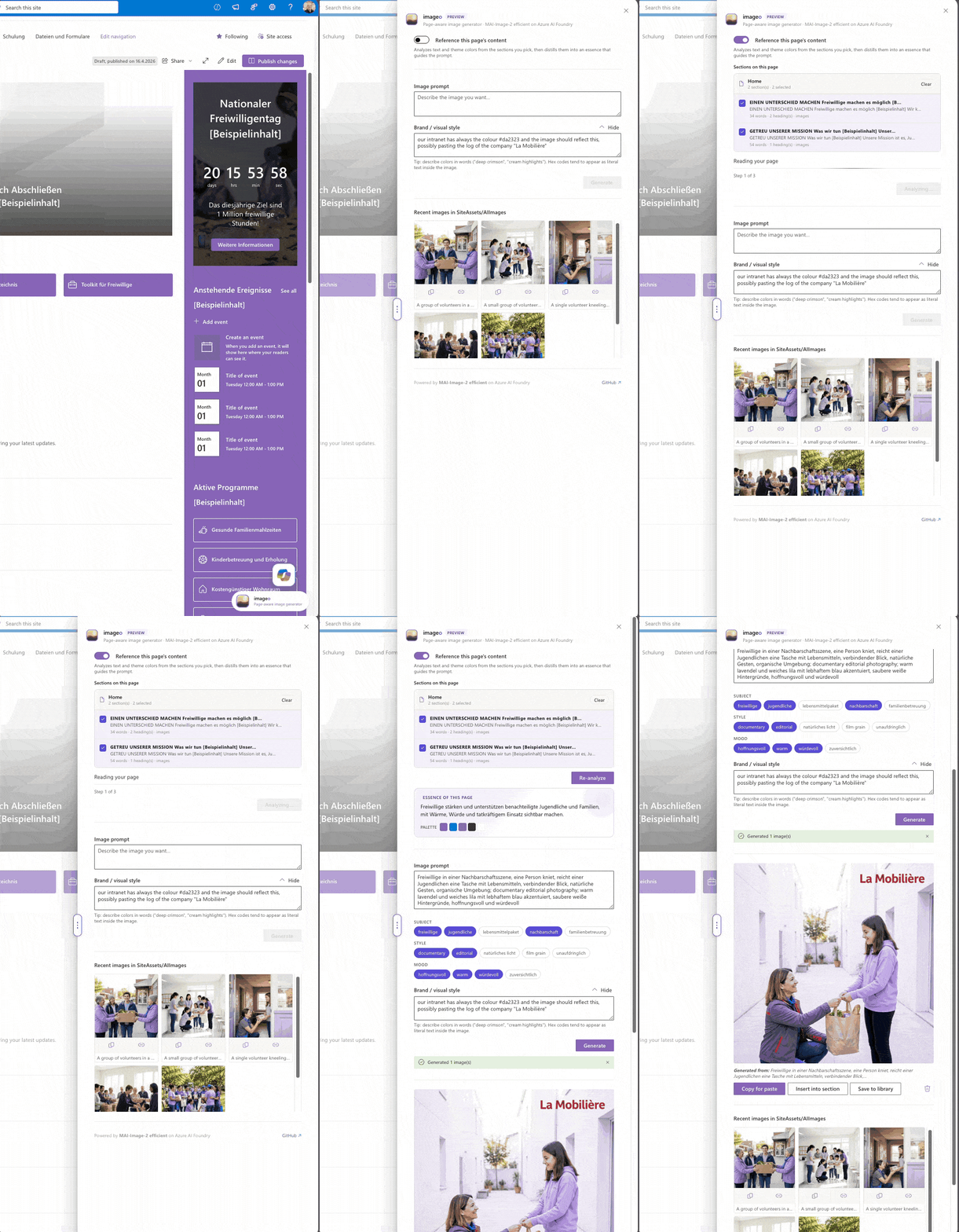
The model behind it is MAI-Image-2-Efficient. But what makes the images fit the page isn’t the model. It’s what the model is told.
Microsoft Foundry is the rebranded name for what was Azure AI Foundry; the rename took effect at Ignite 2025 and was formalized in the January 2026 product terms.
Page-grounded, not a blank prompt box
The simple version of this tool is a text box wired to an image model. You’d type the prompt yourself, every time, describing a page you’re already looking at.
imageo reads the page first. Before any image is generated, a GPT-5 mini call distils the page or the specific sections you pick into three things: a one-line essence, a suggested prompt, and a set of Subject / Style / Mood chips. None of it is hardcoded; it all comes out of the page content. You can take the suggestion as-is, edit a chip, or rewrite the prompt entirely, but you start from what the page is actually about, not an empty field.
And it reads the page in the page’s language. The distilled essence, the chips, and the prompt all follow the user’s SharePoint locale, imageo ships localized in English, German, French, and Italian, but it is easily extendable to other languages.
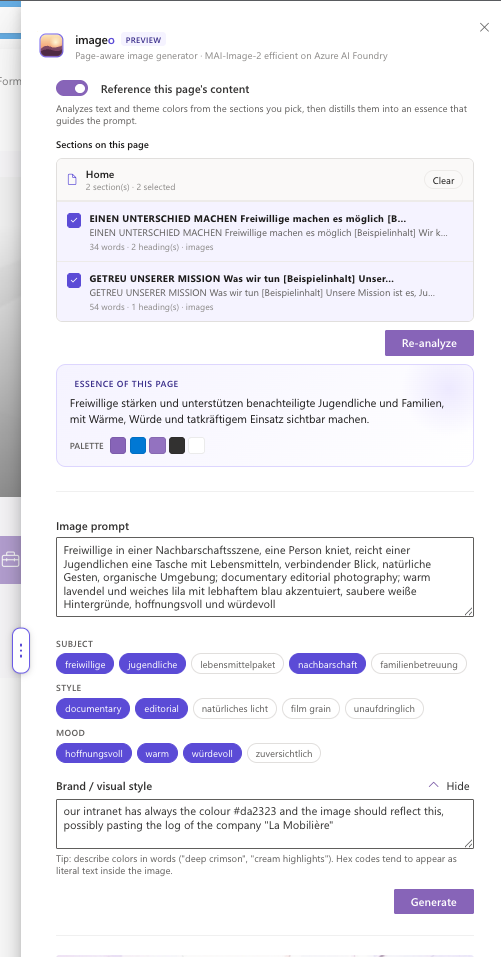
That distil step is the difference between “an image model in SharePoint” and “an image that fits the page.” It’s the part worth building.
How it’s wired
imageo is two pieces: the SPFx Application Customizer in the browser, and an Azure Functions proxy in front of the model.
floating launcher → panel
AadTokenProvider"] -- "AAD bearer
(audience-pinned)" --> B["Easy Auth
Entra-required"] B -- "validated principal" --> C["Azure Functions proxy
/api/analyze-page
/api/distill-scope
/api/generate-image"] C -- "system-assigned
managed identity" --> D["Microsoft Foundry
GPT-5 mini · MAI-Image-2-Efficient"]
The page analysis (/api/analyze-page, /api/distill-scope) runs on GPT-5 mini; the generation (/api/generate-image) runs on MAI-Image-2-Efficient and returns N candidates in parallel. Both sit behind the same proxy.
The auth chain has no shared secret in it. The browser acquires an Entra token through AadTokenProvider and pins it to the Backend API resource; Easy Auth validates the principal at the App Service tier, in front of the function code; and the call from the Function App to Foundry rides a system-assigned managed identity. The only “key” anywhere is a role assignment in Azure RBAC, next to the resources — no function key in the browser bundle, no model key in deployed config.
One imageo-specific detail in the proxy: hex and RGB colour codes typed into the prompt fields are translated to colour names before they reach the image model, so a brand colour like #0aa8a7 conditions the image instead of being rendered as literal text on it.
What you can do with a result
Once you’ve picked a generated image, imageo gives you two options:
- Copy for paste — copies the image to your clipboard, ready to paste wherever you want it.
- Save to library — saves it to the site’s
SiteAssets/AIImageslibrary for reuse.
What it deliberately does not do is write the image onto the page for you.
imageo doesn’t modify the page
That’s a deliberate decision, and worth being direct about.
Inserting an image into a modern page reliably would mean fighting SharePoint. A page open in the editor holds its layout in a client-side React canvas that ignores server-side writes, and a locked or co-authored page returns HTTP 423. The only ways around that are DOM manipulation or editing the page’s internal CanvasContent1, exactly the kind of unsupported hack that breaks on the next SharePoint update.
So imageo doesn’t do it. It stays inside SharePoint’s supported model : no DOM manipulation, no CanvasContent1 writes. A generated image goes to the Site Assets library or your clipboard, and you place it with SharePoint’s own tools. A smaller surface, but one that keeps working.
Running it on your own tenant
imageo deploys on your own Azure tenant. The proxy, the two model deployments, Easy Auth, the managed identity, and the platform hardening are all provisioned by the shared spfx-foundry-deploy
tooling — imageo’s only addition over a single-model deploy is a deploy.config.json that declares two model deployments instead of one.
# Provision Azure (interactive; discovers tenant/subscription via az)
npx -y github:ferrarirosso/spfx-foundry-deploy deploy --config ./spfx/deploy.config.json

# Build the package — bakes the backend URL into the bundle
cd spfx && npm install && npm run build   # -> sharepoint/solution/imageo.sppkg
Upload imageo.sppkg to the App Catalog, approve the API permission request from the SharePoint Admin Center, and add the extension. Because an Application Customizer has no property pane, the backend coordinates are compiled into the bundle at build time — each tenant builds its own .sppkg with its own backend URL, and nothing sensitive is committed.
Try it
ferrarirosso/react-imageo— the project, MIT licensed, SPFx 1.23spfx-foundry-deploy— the deployer that provisions the backend- MAI-Image-2-Efficient announcement — Microsoft’s specs for the variant imageo uses
- Microsoft Foundry product page
If you’ve wired image generation into a SharePoint surface before — or hit the same page-mutation walls from SPFx — I’d like to compare notes. The grounding step, and the decision not to write to the page, are the two parts I’d build the same way again.