


Part seven of the MCP365 Explorer series
takes on the smallest server we’ve covered yet: mcp_WordServer, with just four tools. Four calls, and that’s the whole surface. But those four cover something historically painful: programmatic Word document manipulation with a simplicity that feels almost suspicious until you try it.
Anyone who has built document automation knows the landscape: the Open XML SDK to write .docx files, parsing the ZIP-packaged XML to read them, the Graph API to upload or download, authentication plumbing, and a whole category of edge cases around comments, revisions, and content controls. The Work IQ Word server collapses that into four calls: create a document, read its contents, add a comment, reply to a comment. No SDKs, no XML.
As with the other servers in this series, the Work IQ MCP servers are in preview and may change.
The Showcase
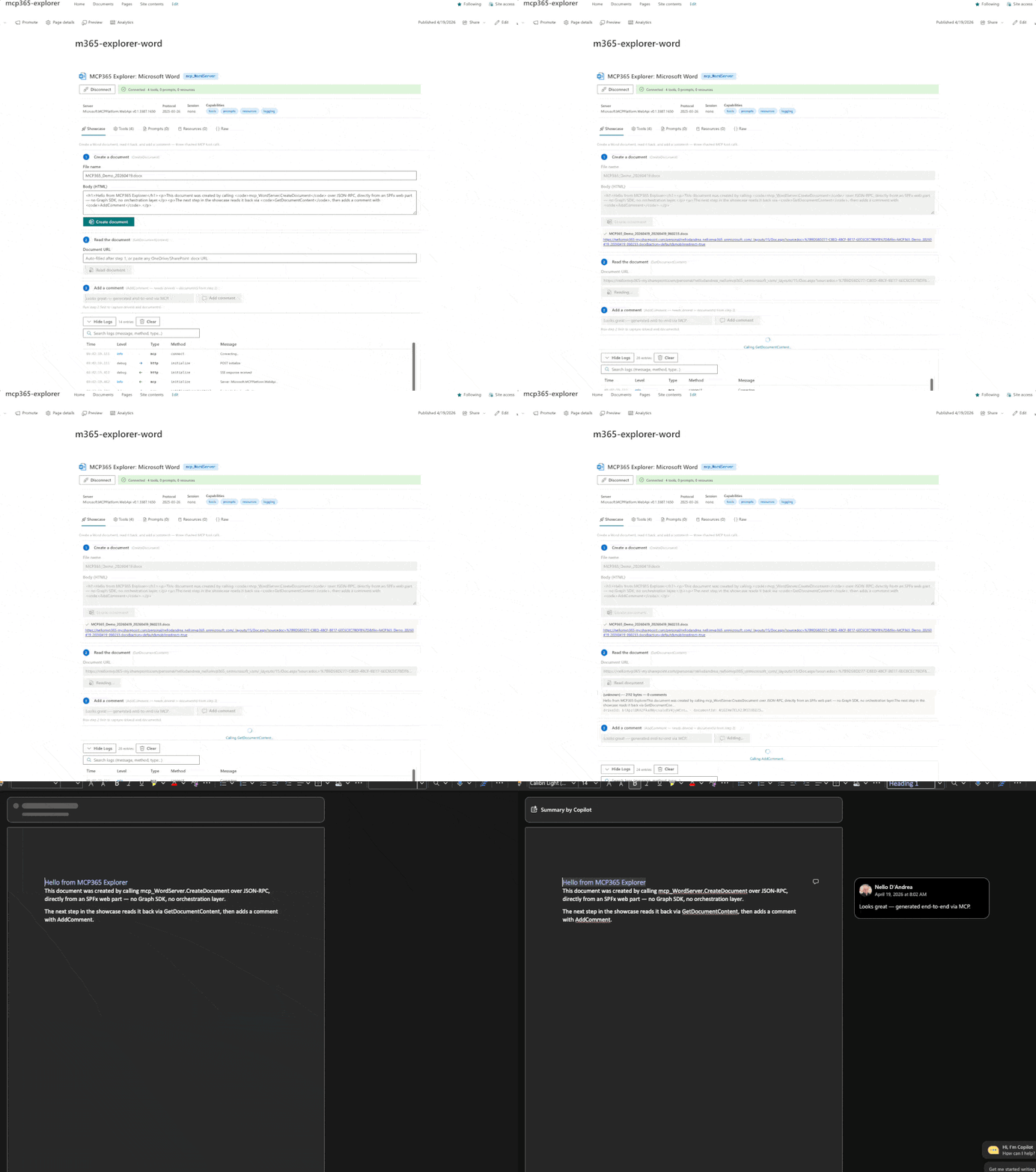
The Word Explorer showcase chains all three of the most useful tools end to end:
Create a document (CreateDocument) : takes a fileName and a contentInHtml body. The server renders the HTML to a proper .docx in the user’s OneDrive root and returns the full Graph DriveItem for the created file, including the WebUrl that opens it in Word Online. The webpart surfaces that URL as a direct link (with data-interception="off" so SharePoint’s router stays out of the way).
Read the document (GetDocumentContent) : takes the WebUrl from step 1, fetches the docx, and returns a tidy JSON payload with filename, size, driveId, documentId, a plain-text content field, and any existing comments. No package parsing on the caller’s side — the server does the work.
Add a comment (AddComment) : takes the driveId and documentId captured in step 2 and the comment text. The comment shows up when you open the document in Word, attached to the top of the body, visible in the review pane. Clean and immediate.
Tool Composition in Practice
fileName, contentInHtml"] -- "returns DriveItem.WebUrl" --> B["Step 2"] B["GetDocumentContent
url (from step 1)"] -- "returns driveId + documentId" --> C["Step 3"] C["AddComment
driveId, documentId, newComment"] -- "comment appears in Word" --> D["📝 Visible
in Word Online"]
The chain is unusually tight — each step literally passes the output of the previous one as an input. Step 1 produces a URL; step 2 needs a URL and produces two IDs; step 3 needs those two IDs. For an LLM agent, this means a document review workflow can be expressed in three tool calls with no intermediate logic.
What I Learned
Comments + LLMs unlock a new kind of review workflow. CreateDocument and GetDocumentContent are unsurprising: every document stack has some version of write and read. What’s new is AddComment and ReplyToComment as first-class tools. Pair them with an LLM and you get inline document review in three or four MCP calls: an agent reads the doc, drops a comment where it matters, replies to resolve or escalate. The idea of LLM-driven review isn’t new — the plumbing used to be the hard part, and now it’s one tool call away.
HTML in, Word out — and HTML is easier to come by than you think. contentInHtml might sound like a prerequisite you have to write by hand. You don’t. LLMs emit HTML out of the box, Markdown converts in one line, every templating engine renders to HTML. The server handles the .docx conversion — you skip the Open XML SDK entirely.
Response shapes differ between servers. CreateDocument returns { "driveItem": { ... }, "sharedWith": "" } wrapped in a key, with PascalCase field names (Name, Id, WebUrl) instead of the lowercase variants OneDrive uses. The webpart normalizes both, but if you’re writing your own client, don’t assume all Work IQ servers serialize the same way.
Four tools is exactly the right size. Microsoft could have shipped a twenty-tool Word server covering the full Open XML feature set. Instead: write, read, annotate, respond the four operations that cover most real workflows. Small surface, easy for an LLM to pick the right tool, easy for a developer to hold the whole server in their head.
Server Details
| Property | Value |
|---|---|
| Server ID | mcp_WordServer |
| Display name | Work IQ Word |
| Permission scope | McpServers.Word.All |
| Tools | 4 |
Tool Reference
Create: CreateDocument
Read: GetDocumentContent
Annotate: AddComment, ReplyToComment
Deploy It Yourself
Same flow as the other webparts: clone, cd webparts/mcp365-word, build, upload the .sppkg, approve McpServers.Word.All. Full steps and prerequisites in the README
.