
Last week at Ignite, Microsoft introduced MAI Image 2.7 Flash. I wanted to give it a spin, so I went back to imageo. I built this SharePoint Framework (SPFx) Application Customizer in May to generate pictures while writing a page. This time I added transparent backgrounds, image sizes and a Refine button. Microsoft’s Ignite announcement · The original imageo post
Three additions to imageo
I tried all three with the same sailboat prompt.
A small sailboat with an orange sail and a navy hull.
Transparent background. With the new switch in Create turned on, the page colour showed through between the sail and the hull.
Image size. I kept the 1024 × 1024 square and added a 2048 × 2048 square and a 2048 × 1152 banner.
A sailboat for the page header. I pick the wide banner and turn on transparency before I generate the boat.
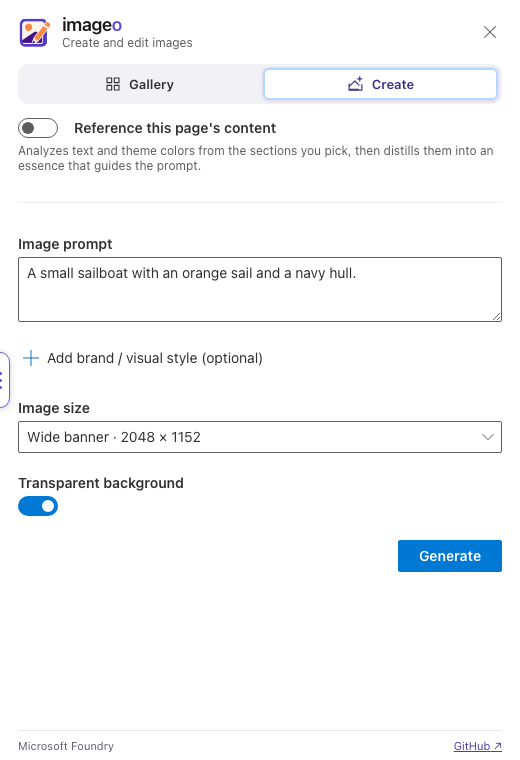
Retry kept the banner wide even after I switched the size control back to square.
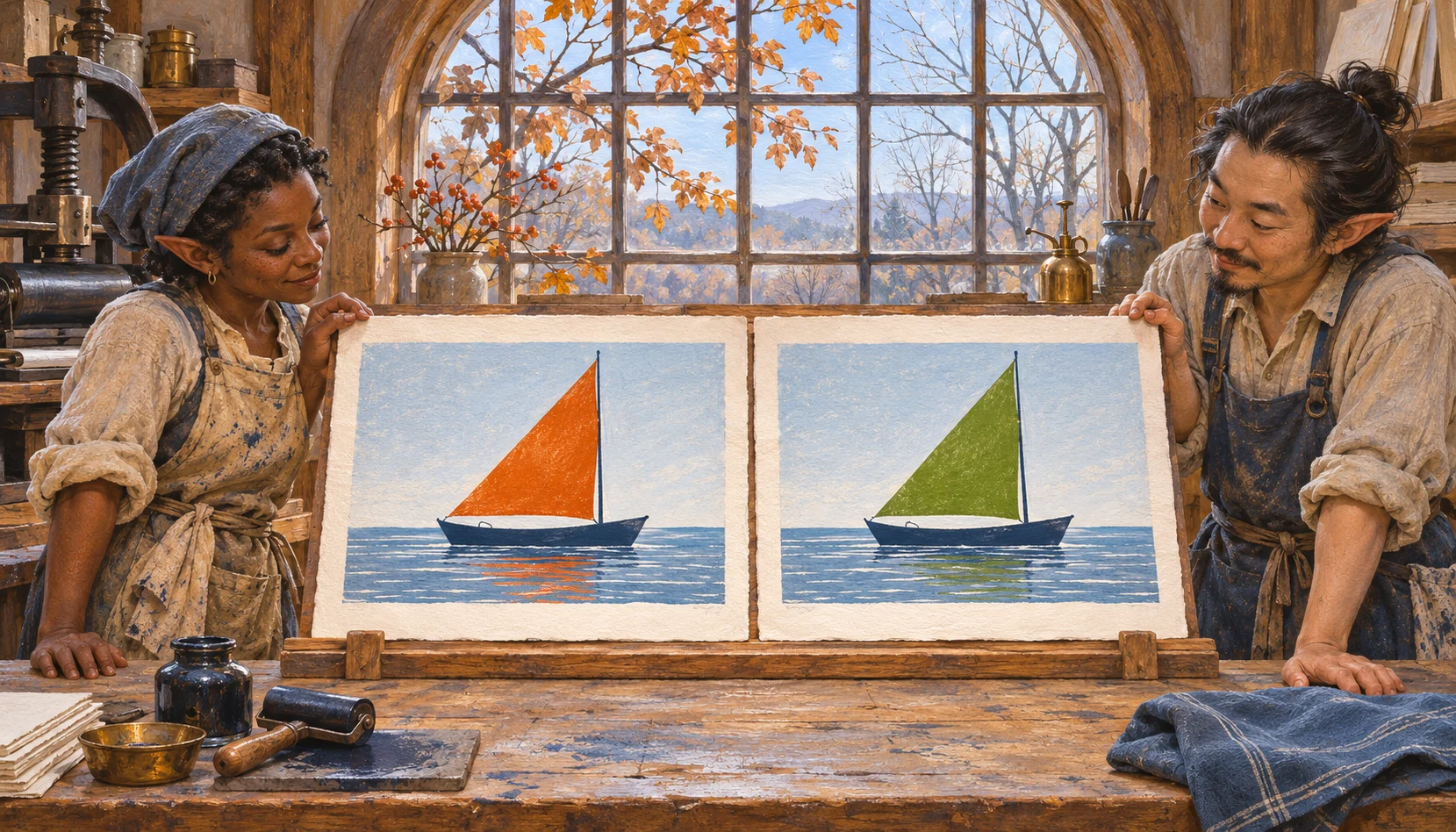
Refine. I saved the boat, then asked for a green sail with the same dark blue hull. The green version kept the banner size. Its background, though, came back almost white. Put both PNGs on a coloured page and you’ll see why I kept the original. The orange original · The green edit


From the Refine button to a SharePoint image editor
I was just about ready to publish the update when I looked again at the Refine request. The Azure Function sends MAI the current picture and the words describing the change. I could use that same Function to edit a photo from a SharePoint library. Between the new settings and getting the editor running in the pane, the whole update took me one Sunday.
A purple sail on the same boat
The new Gallery lists PNGs and JPEGs from the current site. I opened the green boat and picked purple. Watch the stripes when I click the sail. I can brush out any bit of mast I catch.
Imageo writes the colour instruction for me. After MAI returns the edit, imageo keeps the original pixels outside my selection. I can compare the sails and save the purple version as a new PNG in Site Assets, ready for the Image web part.
Giving Luna a job in the editor
The green sail was hard to see from a distance. I wanted it to stand out and the ropes to stay as they were.
I typed that into Additional instruction and clicked Suggest an instruction. GPT-6 Luna came back with “Increase the sail’s contrast against its surroundings while leaving the rigging unchanged.” Luna had only seen the text. I could edit its suggestion, but I kept it and clicked Send. MAI returned the boat with a darker green sail.
Removing an object and changing the background
I also tried a picture with two red markers floating on the water. I clicked the left one and chose Remove object. MAI filled the gap with water. Afterwards I compared the saved PNG with the original. Every pixel in the right half of the picture, including the other red marker, was identical.
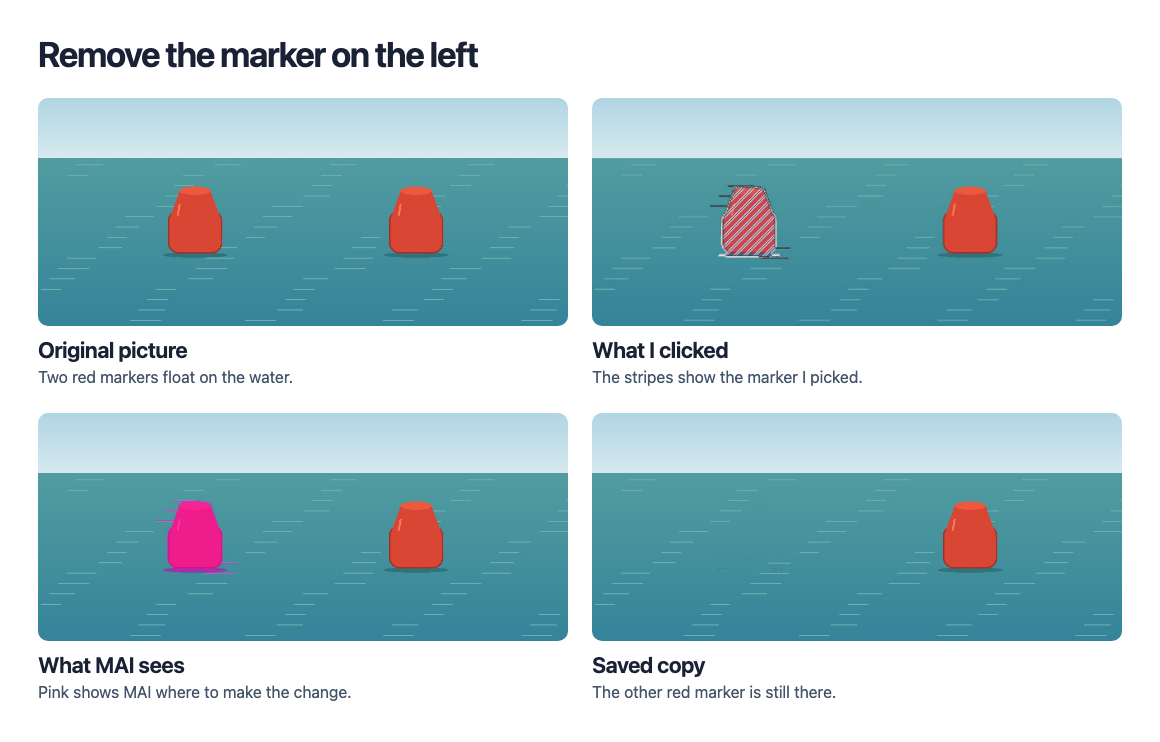
For Replace scene I selected the marker I wanted to keep and asked for a mountain lake at sunrise. MAI drew the shore, the pine trees and the reflection on the water. Every pixel I checked inside the marker still matched the original.
For a repair guide, I could mark a spare part in a photo and make the background transparent. Solid backgrounds, cropping and resizing also run in the browser.
From SharePoint to Microsoft Foundry and back
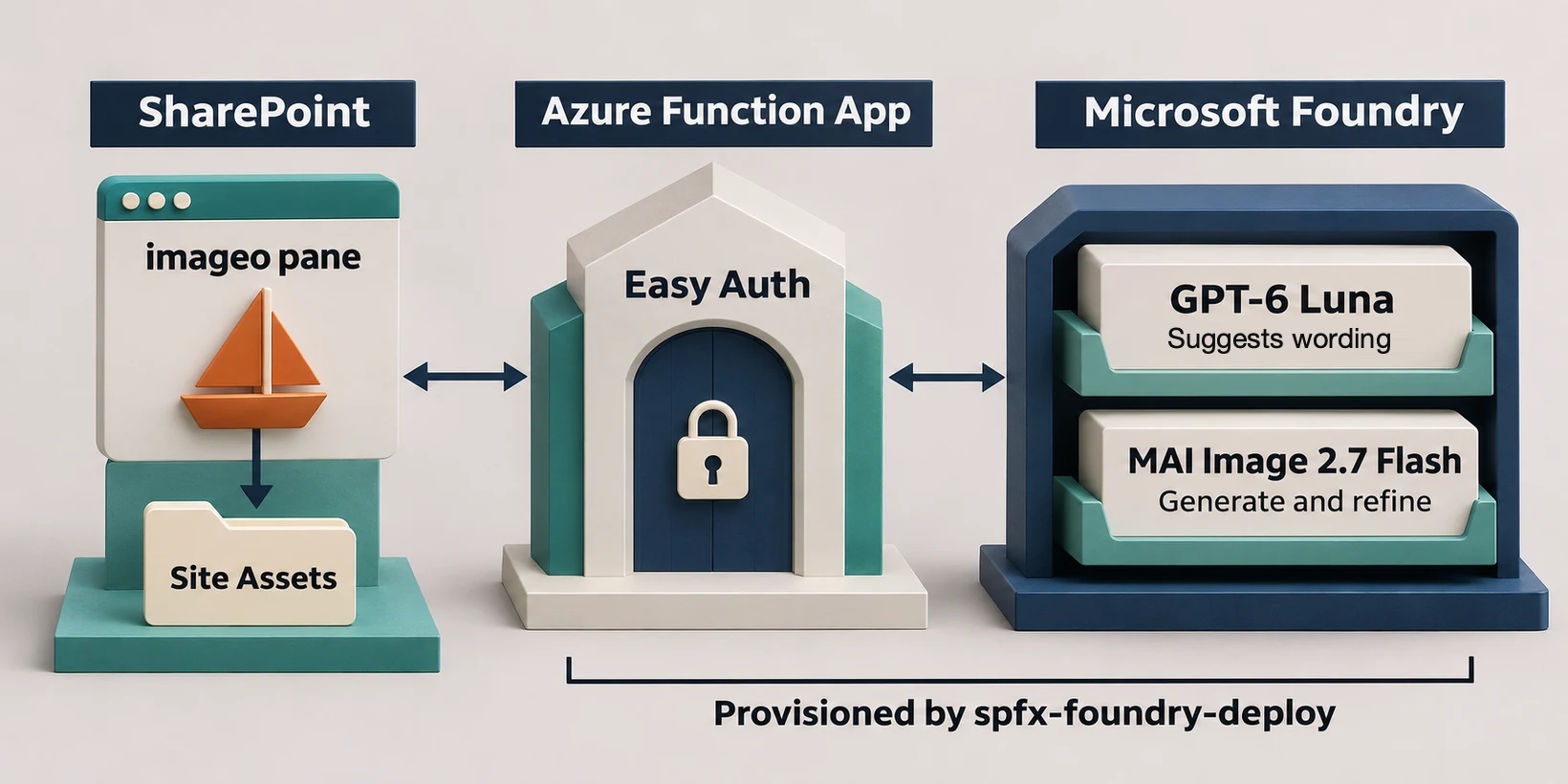
Follow the sailboat from the gallery to the saved copy. Luna receives my words. When I click Send, the Azure Function sends MAI the picture, a copy with the sail marked in pink, and my instruction. I can compare the result and resize it back in the pane.
Watch one editing task
Each clip shows one task.
A banner for the sailing story
Start with a paragraph from the page, or open a boat you’ve already saved.
Use a page section to suggest a prompt
Retry with the original generation settings
Turn the orange sail green with quick Refine
Find an existing picture in the gallery
One change to an existing picture
Watch the right marker while the left one disappears. For the mountain lake, I mark the one I want to keep.
Mark a subject and adjust the selection
Review Luna’s wording and send the edit
Remove the left marker
Replace the scene around a subject
A cutout for a coloured page
Keep the subject and let the page colour show through, or crop a copy for a smaller space.
Make the background transparent
Pick a solid background colour
Crop the picture
Resize the saved PNG
About one cent per image
Microsoft’s launch estimate for 2.7 Flash comes to about one US cent per generated image. For comparison, Artificial Analysis lists 2.5 Flash at roughly two cents per image in its 1024 × 1024 comparison. I didn’t measure the Azure charge for the wide banner or the edits in this post. Microsoft’s estimate · Artificial Analysis comparison
The full source code and setup instructions are on GitHub. The README shows how to deploy the Azure backend with spfx-foundry-deploy, build the SharePoint package and install imageo on your site. If you give it a try, I’d love to hear what you use it to edit. Source code · Setup instructions · spfx-foundry-deploy
Microsoft is building its own models for images, speech and code. I like where that’s going. In May I was pleased to get a usable illustration into SharePoint. Now I can open a picture that’s already there, point at the part I want to change and try the edit while I’m writing the page. And at about a cent to generate a new image, I’m happy to give another idea a spin. Microsoft’s MAI announcements at Ignite