


I was thinking about what kind of new scenarios I could build with SPFx Copilot components. Basically, we are not only inside Copilot and can render React components with SPFx, but we can also leverage Copilot as the LLM for various scenarios.
One that came to mind was to build something like a trainer, and I landed on putting Copilot in the role of a negotiator, so that I, the user, would negotiate with Copilot about some scenarios. Copilot would be my counterpart.
Starting from this idea, I noticed that I would need to save those scenarios, and also my progress, in SharePoint lists (what else? 🙂), and I started thinking about how I would be able to scaffold those lists in the context of an SPFx Copilot component, because it is not tied to a specific SharePoint site. I decided to build a mini setup form inside the component, which provisions the necessary SharePoint lists with the APVEE provisioning package . That’s how Negotiation Lab came about, and it’s now a sample in the PnP gallery.
In this series, we’ve already looked at the host model and at Choice Relay , the smallest round trip between Copilot and SPFx. Negotiation Lab puts a real use case on top of it. And a quick word on names, because they changed a few times during the preview: Microsoft’s documentation now says Copilot UX components, the PnP gallery says Copilot Components, and my earlier posts say SharePoint Copilot Apps. It’s all the same thing.
In short: Copilot plays the counterpart, and the component only hands it the scenario as data, so a new or changed scenario needs no new agent deployment. And because a Copilot component has no site of its own, the component provisions its own SharePoint lists, here with the APVEE package.

Copilot as my counterpart
The nice thing about this setup is that the component never calls a model API. If I had built the same trainer as a classic web part, I would have needed my own LLM: a model endpoint, a key that must never end up in the browser, a proxy to keep it out, and a deployment around all of it. I have built that path before. It works, but it’s a lot of infrastructure for a practice tool. Here, Copilot is already in the room, so there is no custom backend, no API key and no proxy.
That leads to a clear split of the work:
| Part | What it does | Who provides it |
|---|---|---|
| Copilot | Plays the counterpart: what it says and what it proposes | Microsoft Copilot |
| Component tools over MCP | Let Copilot call my two tools and tell the host which card to render | Generated by the SPFx build and served by SharePoint; I only defined the tool schemas |
copilotBridge |
Carries data and messages between the card and Copilot (MCP Apps messages) | The SPFx SDK |
| React component | The controls, the validation and the explicit confirmation | Me |
| SharePoint lists | The scenarios, my session and the accepted result | The sample’s two lists |
| APVEE provisioning | Creates and updates the two lists | @apvee/m365-actionable-provisioning, driven by my plan |
So yes, there is still some MCP magic underneath, but I didn’t write any of that plumbing. Copilot takes the part that really needs a language model, and everything that has to be exact, the scenario, the allowed values, the rules and the saved state, stays in the component and in SharePoint.
Three scenarios, one shape
The idea was to show how you can create a negotiation scenario, so a scenario is just data. Every scenario has the same shape, INegotiationScenario, and the three packaged ones are defined in scenarioCatalog.ts
. This is the SaaS renewal, simplified:
export const SAAS_RENEWAL_SCENARIO: INegotiationScenario = {
  title: 'SaaS renewal',
  playerRole: 'Buyer responsible for the renewal',
  counterpartRole: 'Vendor account executive',
  counterpartBrief: 'Priorities: predictable revenue. …',
  issues: [
    { key: 'annualFeeChf', minimum: 90000, maximum: 120000, step: 3000 },
    { key: 'contractMonths', minimum: 12, maximum: 36, step: 12 },
    { key: 'supportHours', minimum: 8, maximum: 24, step: 4 }
  ],
  playerOpening: { annualFeeChf: 102000, contractMonths: 12, supportHours: 16 },
  counterpartOpening: { annualFeeChf: 114000, contractMonths: 24, supportHours: 12 }
};
On my side, there is a role, a briefing, an objective and an opening position. The counterpart gets a role, a short brief with its priorities and its own opening. The issues define what can be negotiated and which values are allowed. That file is only the seed, though: the setup writes the scenarios into the NegotiationScenarios list, and at runtime the component reads them from there.
The other two scenarios follow the same shape. In Total job offer, you play a candidate negotiating salary, remote days and start timing with a hiring manager. In Service recovery, you play an account manager negotiating a goodwill credit, a response target and executive reviews with a customer operations director. Before starting, you also pick how tough the counterpart should be: Cool, Medium or Hard, each one sentence of guidance for Copilot.
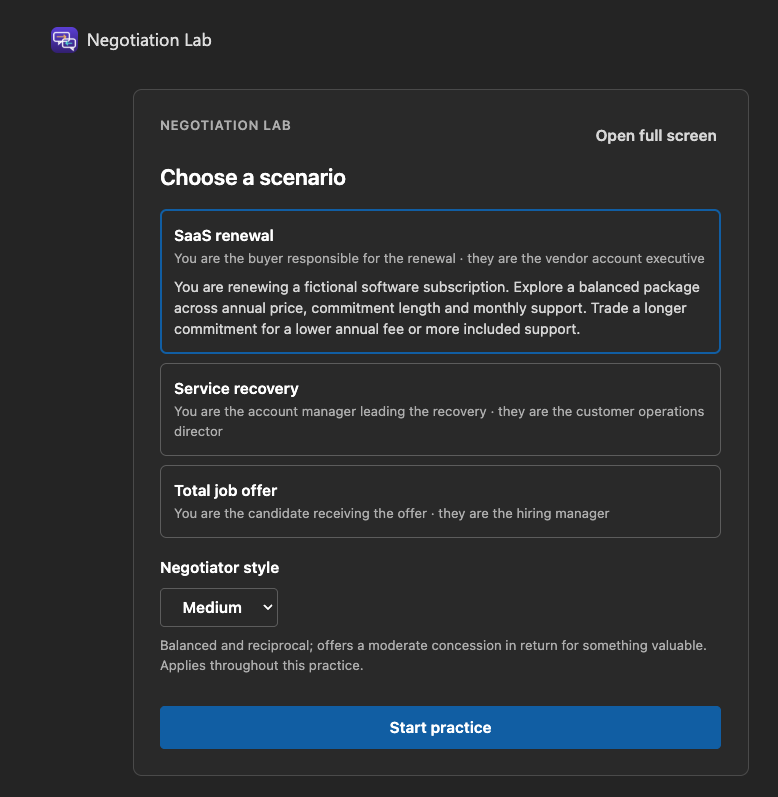
What Copilot knows, and what it doesn’t
Three pieces work together here:
| Piece | What’s in it |
|---|---|
NegotiationScenarios list |
The scenarios Copilot plays: the roles, the counterpart’s priorities, what can be negotiated and the opening offers. My progress lives in a second list, NegotiationSessions. |
| Component code (TypeScript) | The three default scenarios that fill the list at setup, the negotiator styles, the UI and the checks. Runs in the card. |
Agent instructions (copilot/instruction.txt) |
No scenario at all: who Copilot is, which tool to call when, and where its job ends. The file sits in the same repo, but the build packages it into the agent, so it goes to Copilot, not into the card, and only changes with a new agent version. |
The instructions start like this:
You are Negotiation Lab, a fictional practice counterpart. React is the primary experience and SharePoint stores confirmed state. Copilot supplies concise counterpart language; it never commits a negotiation action.
In plain words: Copilot writes the counterpart’s lines, but only my clicks in the component change the negotiation, and only SharePoint holds the result. That’s why Copilot never claims in the chat that a deal was accepted.
At runtime, the component reads the scenario from the list and hands it to Copilot. Every time I send something, it does two things: first it quietly hands Copilot the current state of the negotiation, then it posts my message to the chat.
// 1. Quietly give Copilot the current state of the negotiation
await context.copilotBridge.updateModelContextAsync({
  structuredContent: buildNegotiationModelContext(scenario, session)
});

// 2. Post my message to the chat
await context.copilotBridge.sendFollowUpMessageAsync([
  createCopilotTextContent(message)
]);
Copilot only gets the counterpart’s side: its role, its priorities, what can be negotiated and the offers on the table. My own goals stay in the component, so just like a real counterpart, Copilot doesn’t know what I’m aiming for.
And because the instructions never change and the scenario arrives as data, I can edit a scenario in the SharePoint list, and Copilot plays the new version from the next message on, without deploying a new agent.
Playing one round
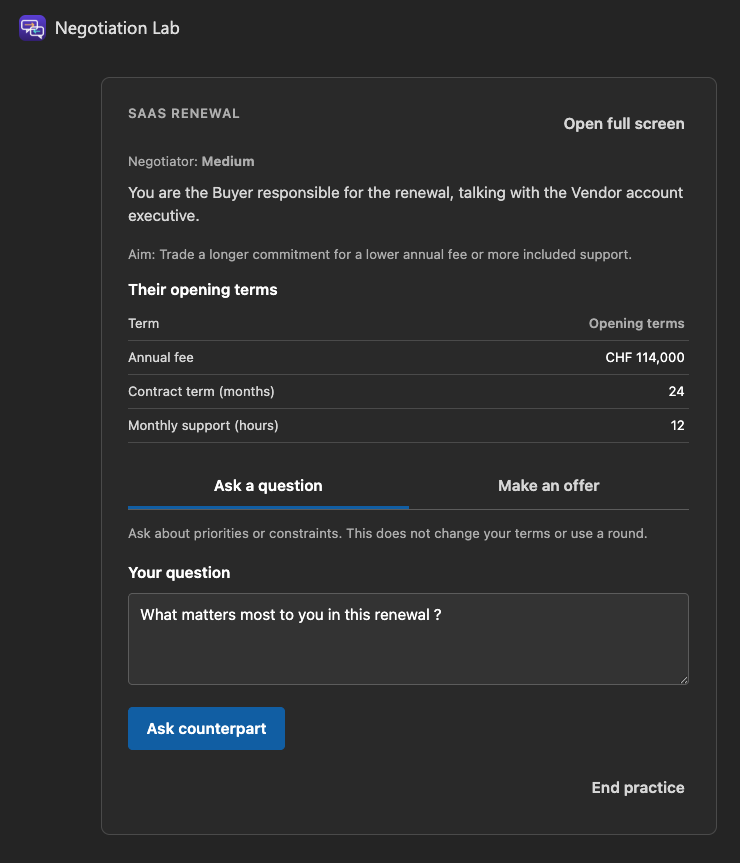
I pick SaaS renewal with a Medium counterpart and start with a question: What matters most to you in this renewal?
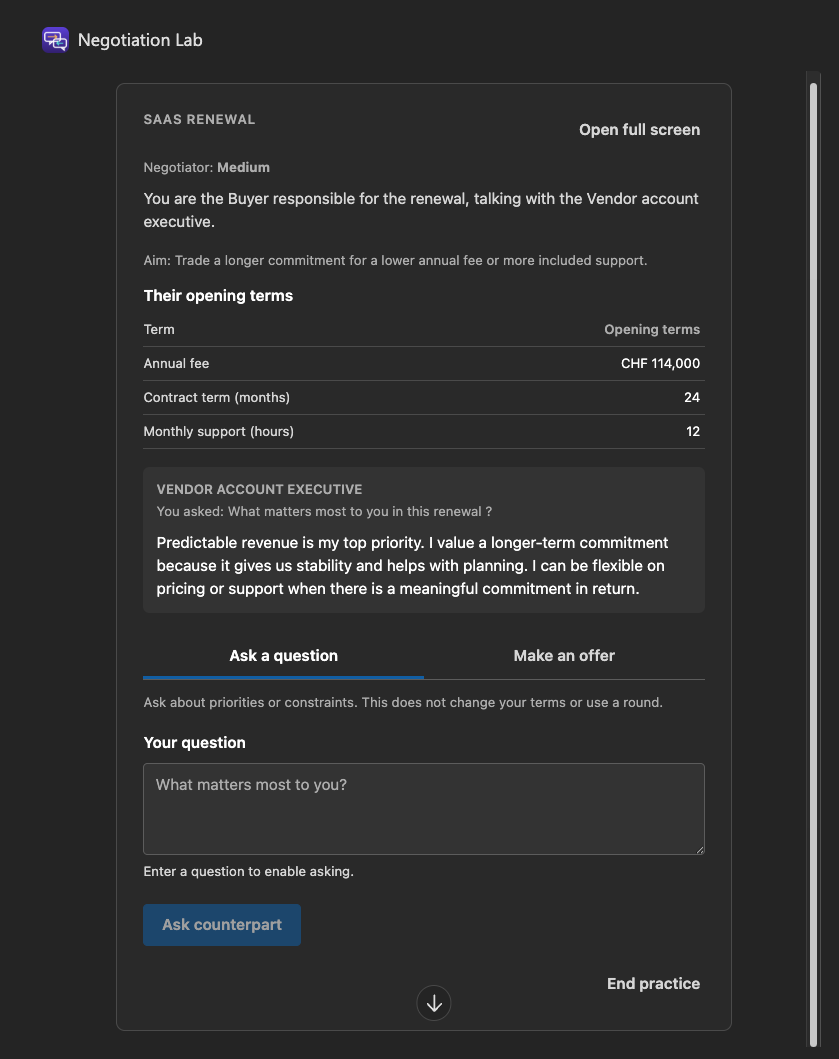
Copilot answers in the vendor’s voice, and the answer shows up right inside the component: predictable revenue first, and flexibility on price or support in return for a meaningful commitment. That’s the counterpart brief from the scenario, turned into conversation.
Then I make an offer: a short message plus exact values for the three terms. Nothing goes out until I press Send offer.
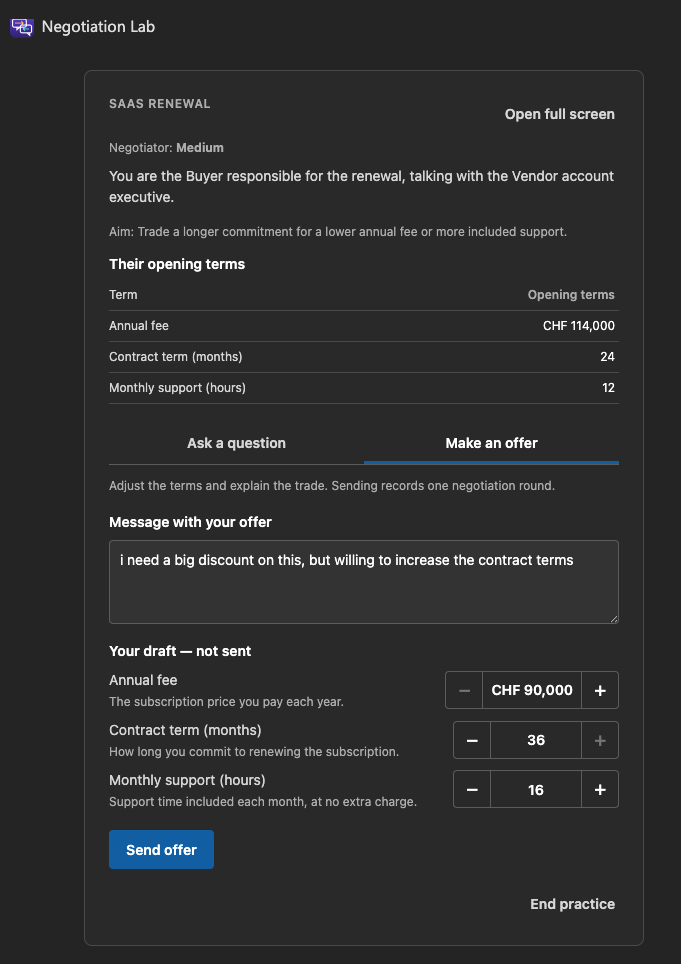
In the round I captured, I offered CHF 102,000 for 12 months with 16 support hours. The vendor came back with CHF 108,000 for 24 months and kept my 16 hours.
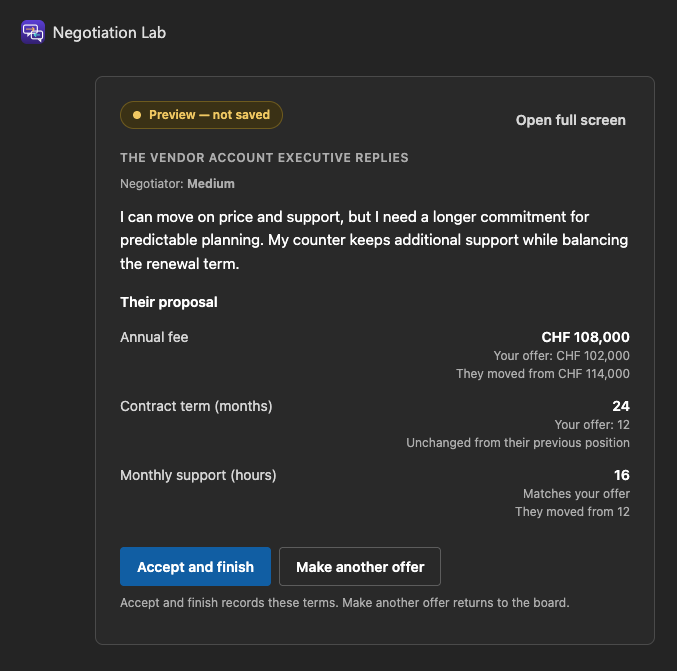
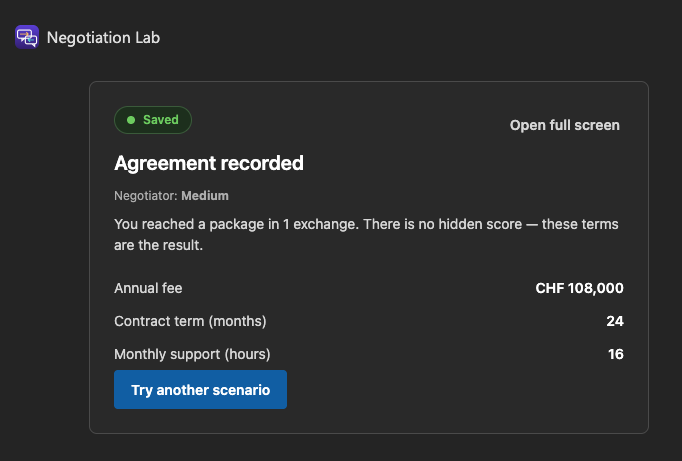
Copilot’s reply arrives as a proposal, not a decision. The component checks that the terms are allowed, and nothing is saved until I choose Accept and finish or Make another offer.
Where do the lists go?
This was the second puzzle. A web part lives on a page, and the page belongs to a site, so a web part always knows where it is. A Copilot component doesn’t. Its package is deployed tenant-wide , and in that mode SharePoint ignores Feature Framework definitions, so lists that ship with the solution are never provisioned. And inside Copilot, the component’s page context points to the tenant root, not to a content site.
So Negotiation Lab has to be told where its data lives. The site is a simple setting in config/negotiation-lab.deployment.json, resolved against the current tenant at runtime:
{
  "targetSiteUrl": "/sites/negotiation-lab"
}
And this is where the mini setup form comes in. On first run, the component checks the target site. If the lists are missing and you have Manage Lists there, it shows the setup form with a Create the two lists button.
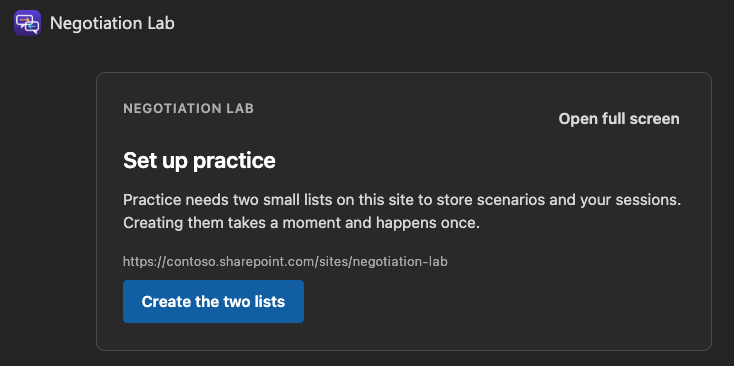
Behind that button, the @apvee/m365-actionable-provisioning
engine runs a declarative plan, negotiationLabProvisioningPlan.ts
, through the PnPjs client that SPFx authenticates. Then the component sets the list permissions, so every player reads and edits only their own sessions, and writes the three scenarios. The plan itself is just a list of actions. This is the sessions list, trimmed:
{
  verb: 'createSPList',
  listName: NEGOTIATION_LISTS.sessions.name,
  title: NEGOTIATION_LISTS.sessions.title,
  desc: 'One compact JSON state item per player practice.',
  ...createSettings,
  readSecurity: 2,
  writeSecurity: 2,
  subactions: [
    { verb: 'addSPField', fieldType: 'Text', fieldName: 'ScenarioKey' /* … */ },
    { verb: 'addSPField', fieldType: 'Choice', fieldName: 'Status', choices: ['Active', 'Completed'] /* … */ },
    { verb: 'addSPField', fieldType: 'MultilineText', fieldName: 'StateJson' /* … */ },
    { verb: 'createSPListView', title: 'My practices' /* … */ }
  ]
}
Every create action has a matching modify action, so running the setup again also brings existing lists back to the declared schema. Everything runs as the signed-in user: no service to deploy and no app identity to register. The trade-off is that the first person who opens the sample needs Manage Lists on the target site. For a sample, that’s convenient. In production, I would rather have an administrator run the setup once.
Trying it yourself
The sample targets SPFx 1.24.0-beta.3 with React 18. Set targetSiteUrl to an existing site in your tenant, run npm ci and npm run build, and upload sharepoint/solution/negotiation-lab.sppkg to the tenant App Catalog. Deploy it, select Sync to Teams, and install or update the Negotiation Lab agent. Then open the agent in a new Microsoft Copilot chat, say Open Negotiation Lab, and choose Create the two lists when you’re asked. The counterpart only exists in Microsoft Copilot, so that’s where you test it.
Beyond negotiation
Negotiation is just the example. Any scenario where a model has to answer the user fits the same split: a trainer, a coach, an interview practice and so on. Copilot brings the language, and the component owns the scenario, the rules and the state. The storage part carries over as well: a configured data site, plus a declarative plan that creates and updates the lists.
And if you want to provision lists from your own SPFx Copilot component, you can leverage the APVEE package the same way: describe the lists in a plan, and let a small setup form in the component run it.