


Last week we connected the LLM to one MCP server — SharePoint Lists — and watched it resolve a list by name, write a row, then reason over the result without touching another tool. Same Tiny Agents loop today, different scenario shape. We point the agent at a Word document and ask it to flag every TBD or missing piece of information. The model reads the doc, identifies what’s worth a comment, and writes the comments back inline through the Work IQ Word MCP server.
Same backend, too. The Microsoft Foundry proxy we deployed last week
with spfx-foundry-deploy
serves this webpart unchanged — one deployment, two agentic webparts. The agentic loop lives in the browser; the backend only forwards chat completions.
As with the other servers in this series, the Work IQ MCP servers are in preview and may change.
The Showcase
The webpart is a plain SPFx webpart — dropped onto a SharePoint page once, then used like any other. From inside that page, I chat with it in plain English about a Word document I can reach:
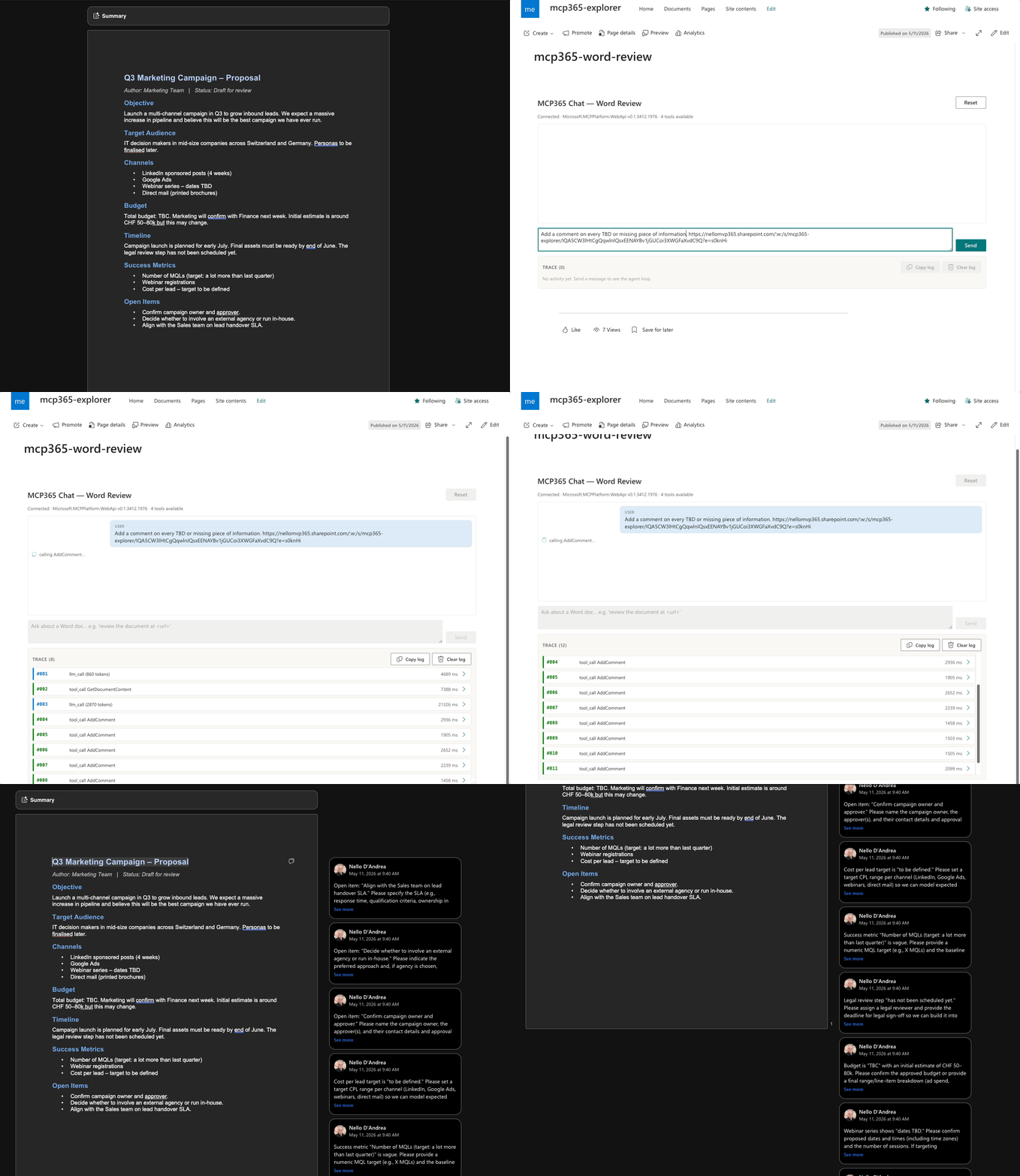
Add a comment on every TBD or missing piece of information in this document.
That’s the entire interface. No menu of operations, no MCP tool to pick, no document ID to look up — just a chat box on a SharePoint page. The agent picks which Work IQ Word MCP tools fit the request, calls them in the right order, and the comments land in the document’s review pane.
Nine specific, actionable comments — one per gap — appear in the document, each phrased as a question for the author. “Please specify the target personas — job titles, company sizes, pain points” on the personas line. “Please confirm the approved budget or provide a deadline when Finance will confirm” on the budget line. “Please specify a measurable target — percentage growth, leads, revenue” on the a lot more than last quarter line. I never named the tool, the document ID, or the comment count. Those came from the prompt and the document itself.
The demo document is Q3 Marketing Campaign – Proposal with deliberate gaps left in for the test. Any Word document I can access works the same way.
What’s different from last week
Last week’s writes were structured data — fields on a SharePoint list item. The model picked the tool (createListItem), filled the field map, and the database got a row. The semantics were unambiguous: a string in the Title column is a title.
This week’s writes are structured commentary. The model still picks the tool (AddComment), but the content of each write is a judgement call — what part of the document is worth flagging, and what to say about it. The schema doesn’t tell the model “these are the comments to make.” The schema tells the model “here’s where comments go.” The judgement comes from the prompt and from the LLM’s own reading of the prose.
That’s a sharper proof of the agentic-loop story than last week was. The list demo showed the model executing CRUD against a database. The Word demo shows the model doing the review — not just the writing. The loop is the same; what changes is whether the loop is wrapping reasoning or just routing.
What I Learned
AddComment works on authored docs — watch out for LLM-generated test data. A .docx generated by an LLM may return BadDocument until it’s been touched once via Word web app’s comment UI (add a comment manually, delete it — the OOXML structure gets initialised, and stays that way). Documents authored in Word work without this priming step. Worth knowing when preparing test fixtures: a real doc will just work; a fabricated one may need one manual comment first.
The model decides the granularity. I didn’t tell the model “make one comment per TBD.” I said “add a comment on every TBD or missing piece of information.” The model chose to call AddComment nine times, one per finding, with prose tailored to each location. Same loop architecture as last week; the shape of the work came from the prompt and the model’s own reading. The schemas constrain the syntax; the prompt and the document content shape the semantics.
Server Details
| Property | Value |
|---|---|
| Server ID | mcp_WordServer |
| Display name | Work IQ Word |
| Permission scope | McpServers.Word.All |
| Tools | 4 (CreateDocument, GetDocumentContent, AddComment, ReplyToComment) |
| Used in this post | GetDocumentContent, AddComment |
Deploy It Yourself
The webpart needs the same three values in its property pane as mcp365-lists-chat: backendUrl, backendApiResource, and environmentId. If you’ve already deployed the proxy for last week’s webpart, paste those values directly — the backend is webpart-agnostic and serves both. If not, npm run deploy from inside webparts/mcp365-word-review/ provisions a fresh one via spfx-foundry-deploy
. Then approve McpServers.Word.All in SharePoint admin centre. Bring your own Word document to test (see the “What I Learned” section about one .docx quirk worth knowing). Full steps in the webpart README
.